Timeline
The Timeline tab sits next to Details on the daily report. It shows your day as bars on a time axis, so you can see at a glance who worked when. There is one row per person or piece of equipment, labelled with the name, the on-site role, and the total hours. You can also adjust times here by dragging the bars.
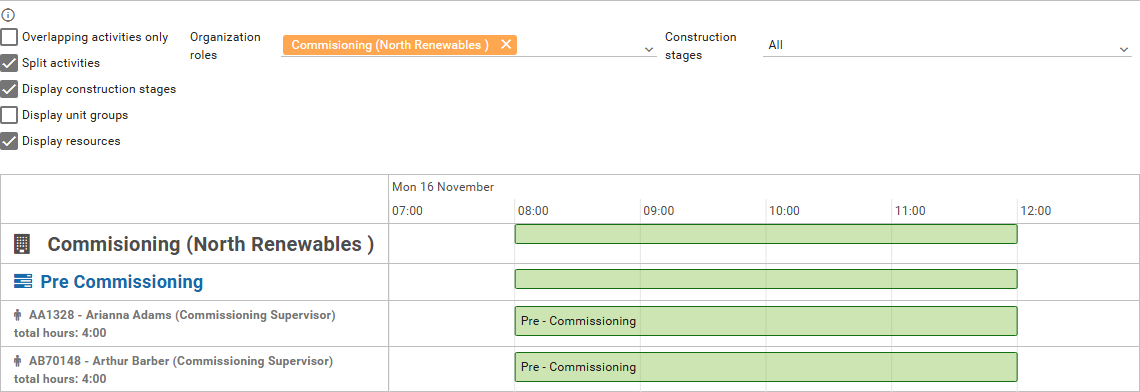
The info icon at the top left explains how to work with the bars:
- You can edit activities that belong to your organization and use the same organization role as this daily report.
- Double-click an empty space to open a dialog for a new activity.
- Double-click a bar to change its start and end. Go to activity in that dialog opens the activity on Details.
- Drag the left or right edge of a bar to change its start or end.
- Click a bar once, then drag it, to move the whole bar.
- A click also shows a delete icon at the top right of the bar. It removes that person or piece of equipment from the activity, after you confirm.
- Hold Ctrl and use the mouse wheel to zoom.
- When there are many rows, use the vertical scrollbar on the left.
A change on the timeline changes the activity's times, so Details shows the new times too.
The rows are arranged like a tree. At the top is the organization role, with the organization name in brackets, for example Crane (Blue Construction). Under it come its construction stages, and under each stage the people and equipment. A role or stage row shows one bar that sums up the work below it.
The check boxes change what is drawn:
- Display construction stages shows the construction stage rows.
- Display unit groups adds a row for each unit group. You see this box only when the project has more than one unit group.
- Display resources shows a row for each person and piece of equipment.
- Split activities and Overlapping activities only help you find overlapping activities. See Spot duplicated activities below.
By default the timeline shows only the organization role of the report you are viewing. To see more, add roles in Organization roles. The list holds the roles whose reports you may view, for example your own organization's other roles and the subcontractors that report to you. You see this list only when there is more than one role to choose from. Another organization's activities appear only after its report has been submitted to your organization. Construction stages limits the bars to the stages you choose.
Spot duplicated activities
The timeline makes it easy to see when the same time was recorded twice. For example, the same person's working time was registered twice by mistake, as two activities. Or a subcontractor registered both Stand by and Work Schedule for the same people at the same time.
When two activities of one person or piece of equipment overlap in time, both bars appear in that row. With Split activities ticked, which is the default, the bars are drawn one below the other, so neither hides the other. The colour shows the type: green for Work Schedule, orange for Extra work, and red for Stand by. The total hours next to the name count both activities, so a doubled day also shows up as a higher total.
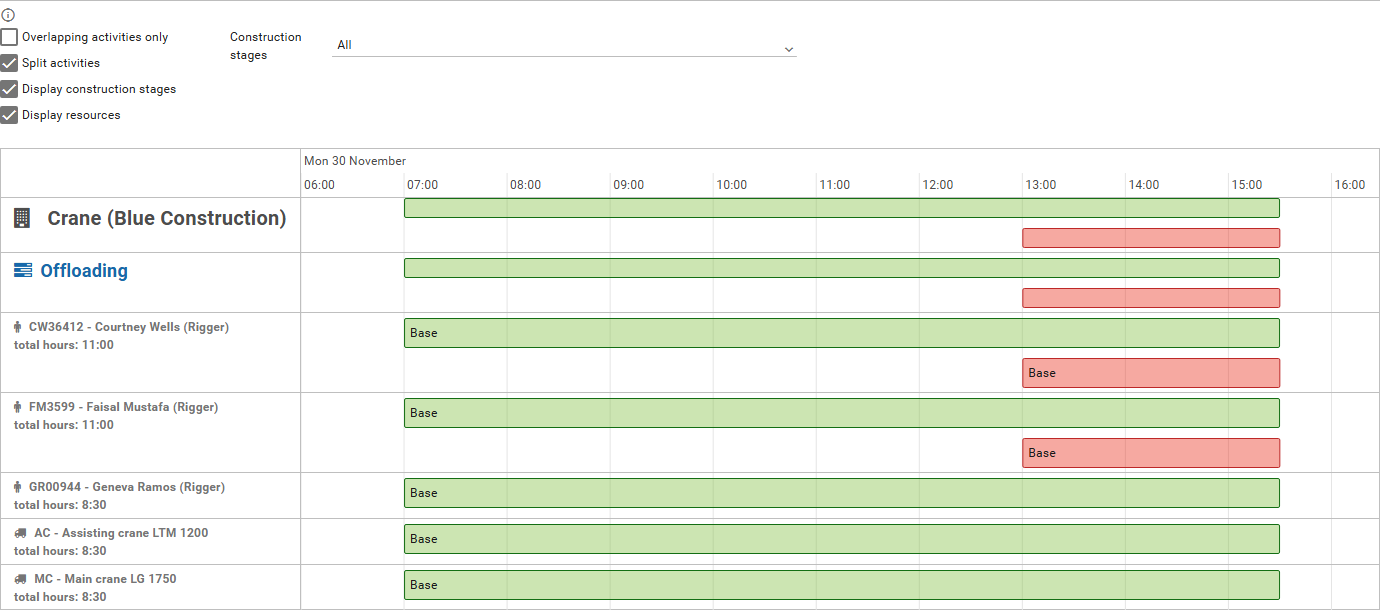
In the picture above, Courtney Wells and Faisal Mustafa have a full Work Schedule day and a Stand by activity from 13:00 to 15:30 at the same time. Their total is 11:00, while the rest of the crew has 8:30.
Tick Overlapping activities only to keep only the bars that overlap. The timeline then shows one row per person or piece of equipment, without construction stages or unit groups. To fix a duplicate, double-click the extra bar and click Go to activity, or click the bar and use its delete icon.