Users and persons in project
Use this tab to add members of your organization to the project. Users must be added here before they can work in the project—for example, they cannot create daily reports until they are included. Similarly, persons must be added to the project so users can register time for them.
The table lists the users and persons already in the project. Each organization manages only its own people on this tab.
A person in SUM-IT is someone who works on site and is included in the project so that their time can be registered on daily report activities by users. Persons do not have a SUM-IT login and cannot log in or create daily reports themselves. For persons, you only need to set the Default role on site.
A user is a person who can also log in to SUM-IT. Once added to the project, users can create daily reports and register time for themselves or for other users and persons in the project. When you add a user, you must set both the SUM-IT Role In Project and the Organization Project Roles.
To access the screen, go to the Projects screen and open Project configuration  for your project. The Users and Persons in Project tab opens first.
Sometimes another organization reports to your organization in the reporting flow (see Organizations permissions). In this context, "below in the reporting flow" means the other organization is accountable to your organization. When this is the case, this tab splits into two inner tabs:
- The first tab is named after your organization (for example North Renewables). Use it to add and manage your own users and persons in this project.
- The second tab is named Other organizations. It is a read-only list of people from those other organizations. It does not show their SUM-IT Role In Project or Organization Project Roles.
If no organization sits below yours, you only see your organization's table. There is no inner tab strip.
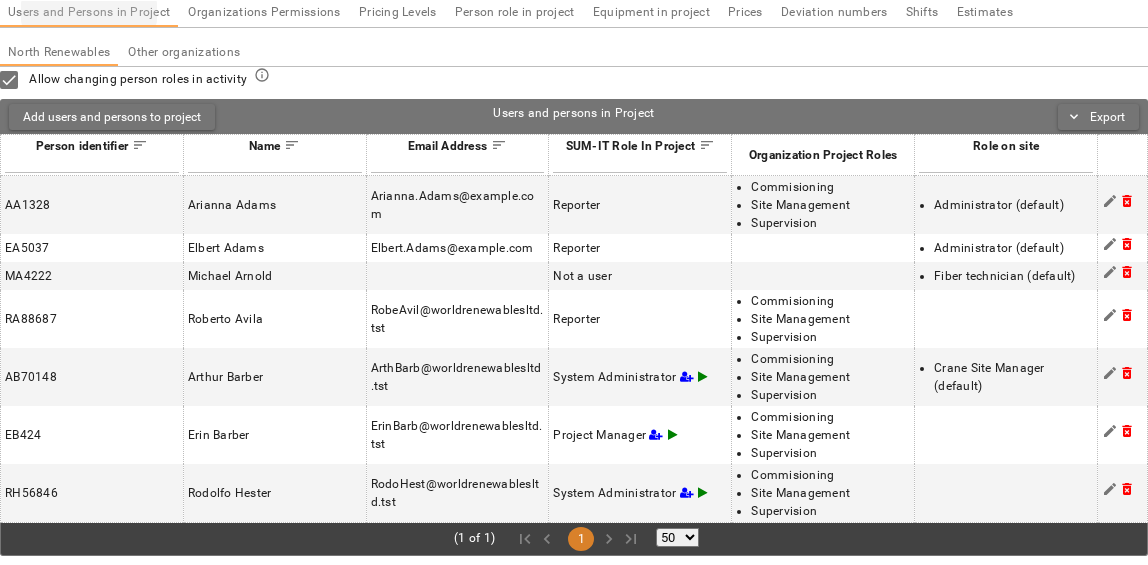
Use Allow changing person roles in activity to control whether users can pick a different on-site role when they add a person to a daily report activity. This setting applies to daily report activities for your organization:
- When selected, users can change a person's role on an activity. They are not limited to the person's Default role on site.
- When unselected, Default role on site is used automatically on activities. It cannot be changed there.
Role fields
A user or person can have three kinds of role. Each one means something different.
- SUM-IT Role In Project controls what the user may do in SUM-IT in this project: which screens and actions they can use. It can differ from their SUM-IT Role in your organization. It does not describe the job they do on site.
- Organization Project Roles are the roles your organization has in this project (for example Installation, Mechanical, or Crane). A separate daily report can be created for each of those roles. The roles you assign here decide which of those daily reports the user can create. Pick at least one. If you do not, the user cannot create daily reports. See Organization roles and Organizations in project.
- Role on site is the job this person does on site (for example crane operator or technician). When you add the person to an activity, Default role on site is used. If Allow changing person roles in activity is selected, the user can choose a different role on that activity. If the person used more than one role during the project, the Role on site column lists all of them.
Permissions
Anyone who can see the project on the Projects screen can open this tab.
Users with Create/Edit permission on
Project Configuration -> Users and Persons in Project functionality can use Add
users and persons to project, Edit, and Allow changing person roles
in activity. Users with Delete permission on that functionality can
remove users and persons from the project.
These actions apply only to people in your organization. The Other organizations tab is read-only.
Add, edit, or remove
Before you can add people to the project, at least one person role must exist. If no roles are defined yet, an informational message will appear on the tab. To add roles, go to Person Role in Project (see Person role in project).
Adding someone to the project is a two-step process: first, select the people you want to add; then, assign their roles.
Select people to add
- On your organization's tab, click Add users and persons to project.
- Select one or more people from your organization who are not yet on the project. The list shows Person identifier, Name, Email Address, and SUM-IT Role.
- People who have a SUM-IT Role are considered users (they can log in to SUM-IT).
- People without a SUM-IT Role are considered persons (they cannot log in).
- Click Add. Select at least one person first. Until you do, Add is not available.
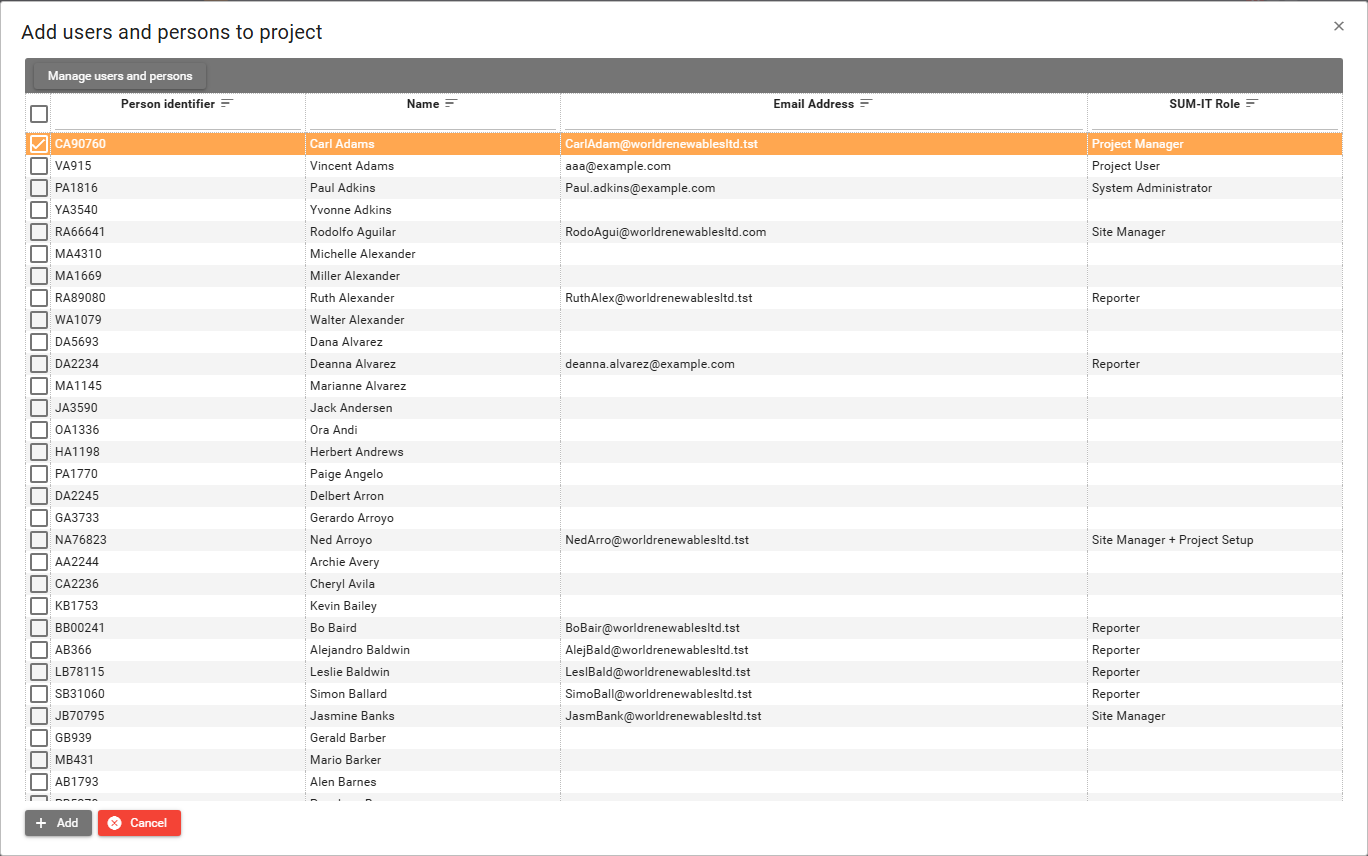
If someone is missing from the list, click Manage users and persons. That opens the people in your organization so you can create or update them. Then return here and add them to the project.
Set project roles
After you click Add in the previous dialog, the Add user/person to project dialog opens. If you selected several people, you will set roles for each of them in this dialog.
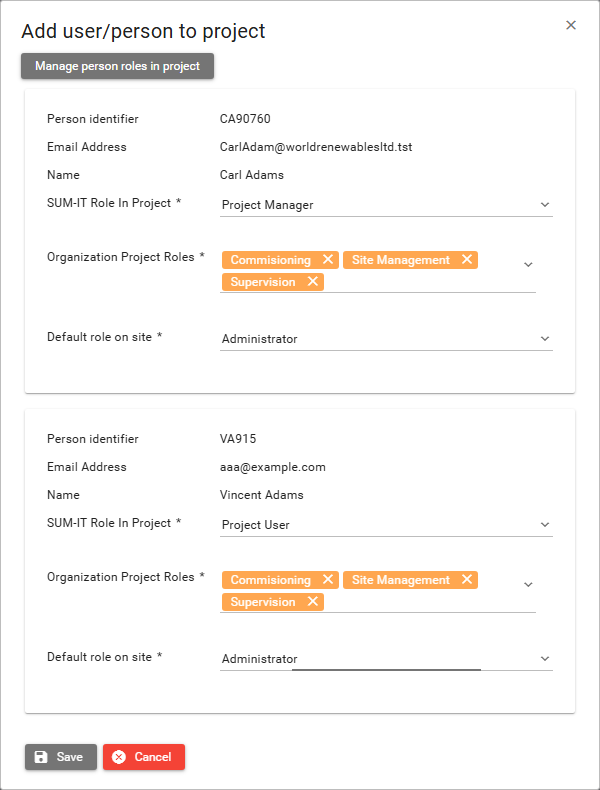
What you fill in depends on whether the person can log in.
For a user (someone who can log in), set all three fields:
- SUM-IT Role In Project — determines the user's permissions within SUM-IT for this project. Available roles are drawn from your organization, except System Administrator. The Project Manager option is only visible if the user's organizational SUM-IT Role is also Project Manager. By default, this field matches the user's organizational SUM-IT Role, but you can select a different one just for this project.
- If the user's organizational SUM-IT Role is Project User, nothing is preselected and you must choose a role.
- If the user's role is System Administrator, this field is disabled (it cannot be changed within the project).
- Organization Project Roles — controls which daily reports the user can create. You must select at least one. If your organization has only one project role, it is automatically selected.
- Default role on site — specifies the person's on-site job. This is assigned automatically when they are added to an activity.
For users, select at least one Organization Project Role. Without it, the user cannot create daily reports.
For a person who cannot log in (i.e., does not have a SUM-IT account), you are only required to set the Default role on site. The fields SUM-IT Role In Project and Organization Project Roles do not appear, as these individuals cannot access SUM-IT or create daily reports. However, activities can still be registered against them.
If you need a Default role on site option that is not currently available, click Manage person roles in project in the dialog to add or modify roles. Then, return and complete the assignment.
All visible role fields must be filled out. Click Save to finish. If the SUM-IT Role In Project you have chosen grants permissions to manage project people or view health and safety data, SUM-IT may prompt you to confirm.
Edit an existing assignment
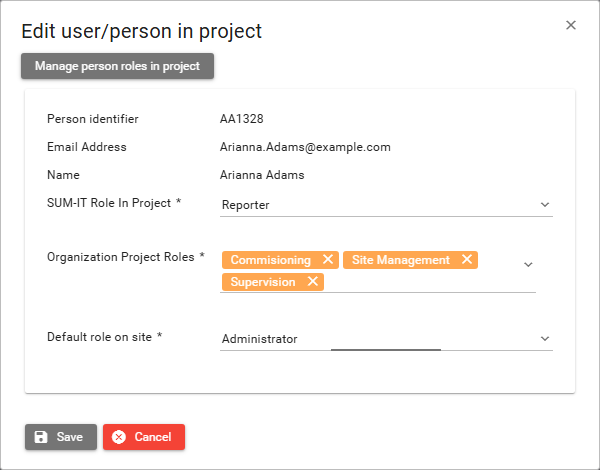
To modify someone's assignment, click Edit on their row. The Edit user/person in project dialog will display the same role fields as when you originally added the person.
Remove from the project
To remove someone from the project, click Delete on their row. You will be prompted to confirm the removal. After a person or user is removed, they can no longer create daily reports or have new activities registered to them. However, any activities already recorded against them will remain unchanged.