Certificates Database (project)
In the current project, open Health and Safety → Certificates and select the Database tab to work with project health and safety certificates. You can filter the list, open rows to see details, upload and manage attachments, add comments, and (when the certificate status and your role allow it) use review actions such as Accept or Reject.
What you see — project owner organization. As the project owner, you can see certificate rows for your organization and for subcontractor organizations in this project when HSE applies to them in either of these ways: the subcontractor has enabled the HSE module for their own organization, or you have enabled coverage for that subcontractor in this project (on HSE settings). Subcontractors who are not covered and do not use HSE at organization level do not contribute their certificate rows to your project view.
What you see — other organizations. If you are not the project owner, you work with the certificate rows that SUM-IT shows for your organization in this project. Your project certificates are visible to project owner who can Accept or Reject them.
What you can change — your organization only. With the right permissions, you can add, edit, and delete certificates only for your organization in this project. Accept and Reject (when shown) are separate review actions: they are available to the project owner organization for all certificates in the project.
For your organization’s company-wide person and equipment certificates under System management, see Certificates Database (organization).
Permissions
To open the Certificates screen in the project and use the Database tab, you need the following permissions:
- The
View Personspermission onProject Health and Safety → Certificates → Database— View person certificates on the Database tab. - The
View Equipmentpermission on the same functionality — View equipment certificates on the Database tab. - The
View Otherspermission on the same functionality — View other certificate records on the Database tab. - The
Create/Editpermission on the same functionality — Add and edit certificates and attachments for your organization’s rows only; also use Accept / Reject when your organization is the project owner and those actions are shown for the current certificate status. Add comment on the certificates. - The
Deletepermission on the same functionality — Delete certificates that belong to your organization only, when the application allows deletion for that row.
To use the Matrix tab, your role also needs the matching matrix view permission(s) for the resource types you need (Persons, Equipment, and/or Others) on Project Health and Safety → Certificates → Certificates matrix. See Certificates Matrix.
Confirm your permissions under Where I can find my permissions in SUM-IT.
Opening the project Certificates Database
- Select the project on Projects.
- Open Health and Safety → Certificates.
- Click the Database tab.
Filters and search
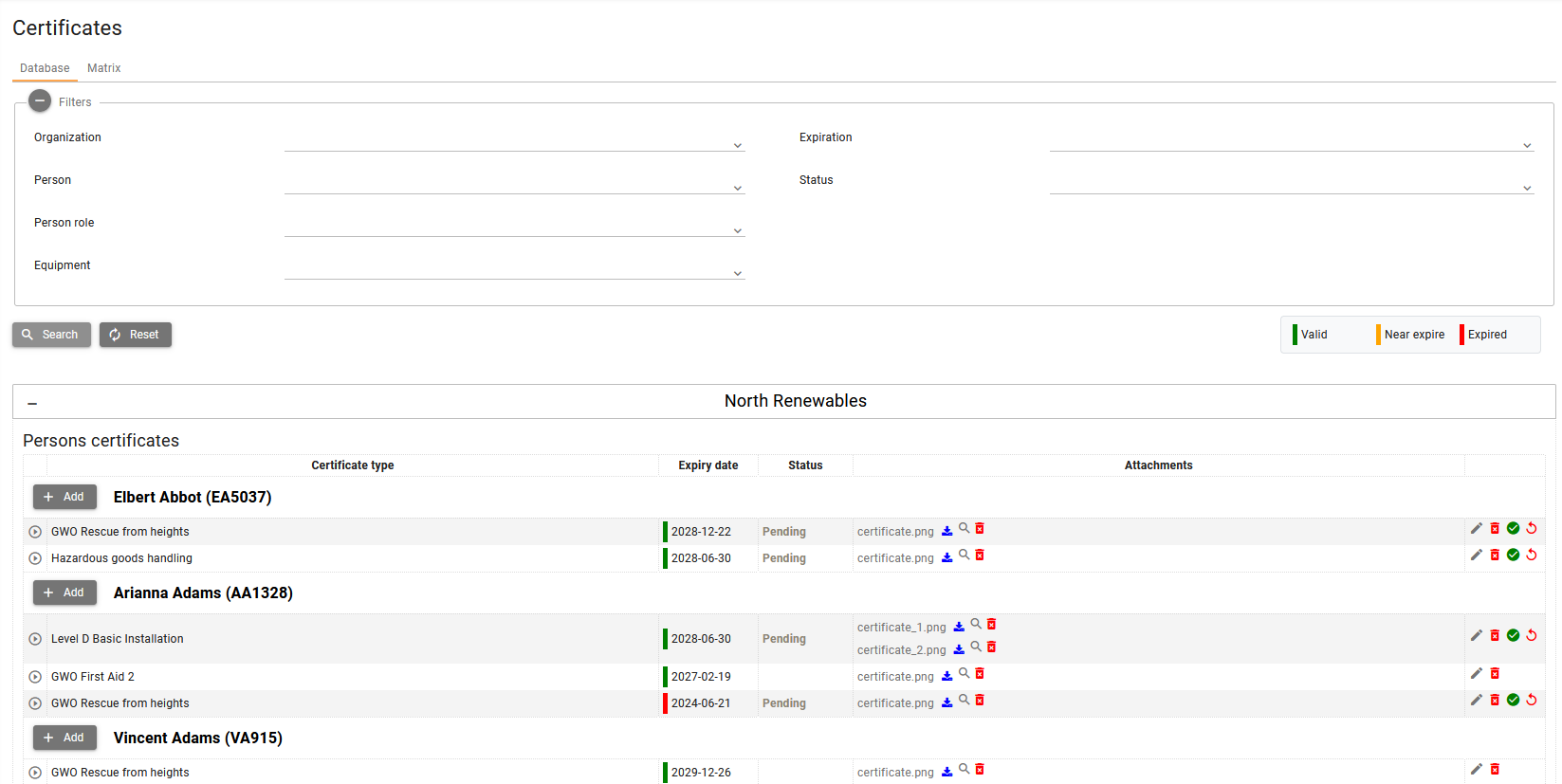
Use the filter area to narrow the table by organization, person, person role, equipment, expiration state, and internal or external status. Search applies the filters; Reset clears them.

Table layout
The table is grouped into Persons certificates, Equipment certificates, and Other certificates as applicable. Each group lists organizations (for example your organization and covered subcontractors) and their resources.
Certificate rows are listed under the organization that owns the resource in the project. Add, edit, and delete apply only to certificate rows that belong to your organization (the blocks where your organization is the owner of the person, equipment, or other resource).
Table columns:
Certificate type (persons and equipment) — The certificate type for that row.
Certificate name (other certificates) — For Other certificates, this column shows the certificate name you entered for that record (instead of a selectable certificate type list used for persons and equipment).
Expiry date — Shows the expiry date together with a coloured status bar for Valid, Near expire, or Expired, based on the expiry date and the near-expiry threshold used on this screen (same meaning as on the organization database: compare Certificates Database (organization)). When a certificate expires before the project end date, SUM-IT can also show a warning indicator next to the date.
Status— They describe the review state of the certificate. Can have values such as Pending, In progress, Accepted, and Rejected. The status change when the creating organization edits the certificate and when the project owner organization accepts or rejects it in the review workflow.
Attachments — Files linked to the certificate. From this column you can download, preview supported types, and delete attachments when your permissions and the certificate state allow it.
Table and row actions
Depending on permissions, organization ownership of the row, and certificate status you may:
- Add or edit a certificate only when the row belongs to your organization and you have the
Create/Editpermission. - Delete a certificate only when it belongs to your organization and you have the
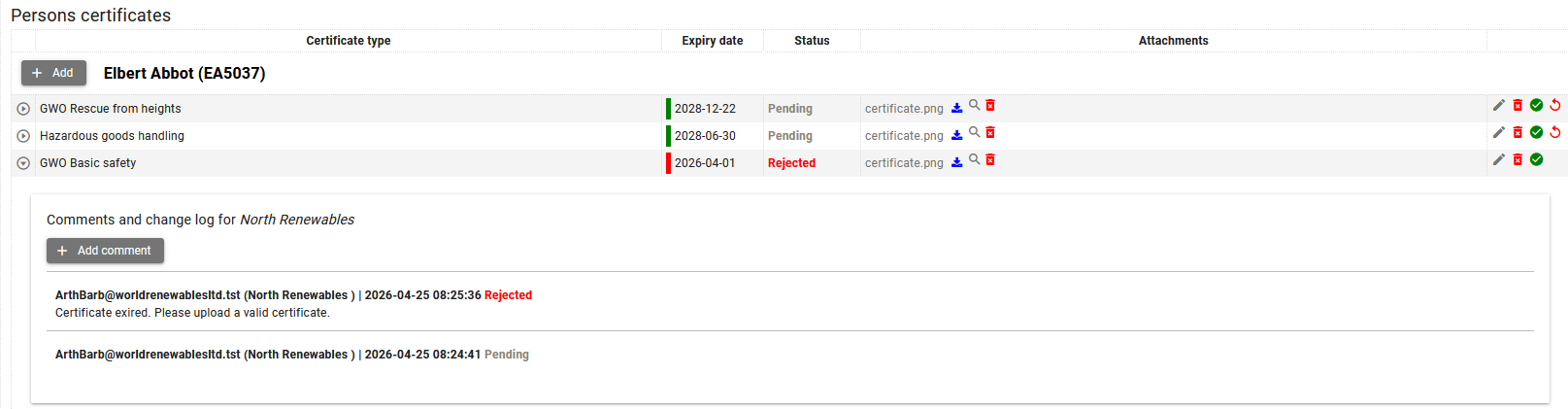
Deletepermission. - Open Comments and change log for the row (expand the row when the UI shows the toggler).
- Accept, Reject the certificate when you belong to the project owner organization, you have the
Create/Editpermission, and those buttons are shown for the current status. - Manage attachments (upload in the edit dialog, download, delete from the table or dialog) when you have access.
Near-expiry and expired certificates in the project database can generate notifications in the top-bar notification list.
In project context, these notifications are sent to users who have the Create/Edit permission on Project Health and Safety → Certificates → Database for the same project and organization context.
Details on notification behavior and types: Certificate notifications.
Edit certificate dialog
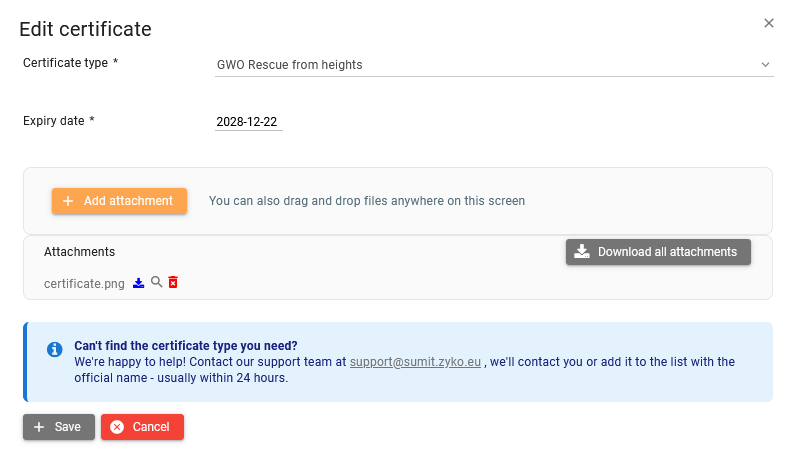
The edit dialog lets you set certificate type, dates, status where editable, and other fields required by your process. Save to apply changes. If validation fails, correct the highlighted fields.
Comments and change log
Use Add comment to record notes. The log shows who changed what and when, including status changes. You may delete comments you added when the UI allows; system status entries stay in the history.
See also
- Certificates Matrix
- HSE settings — Required certificate types for the project.
- Certificate notifications