Certificates Matrix
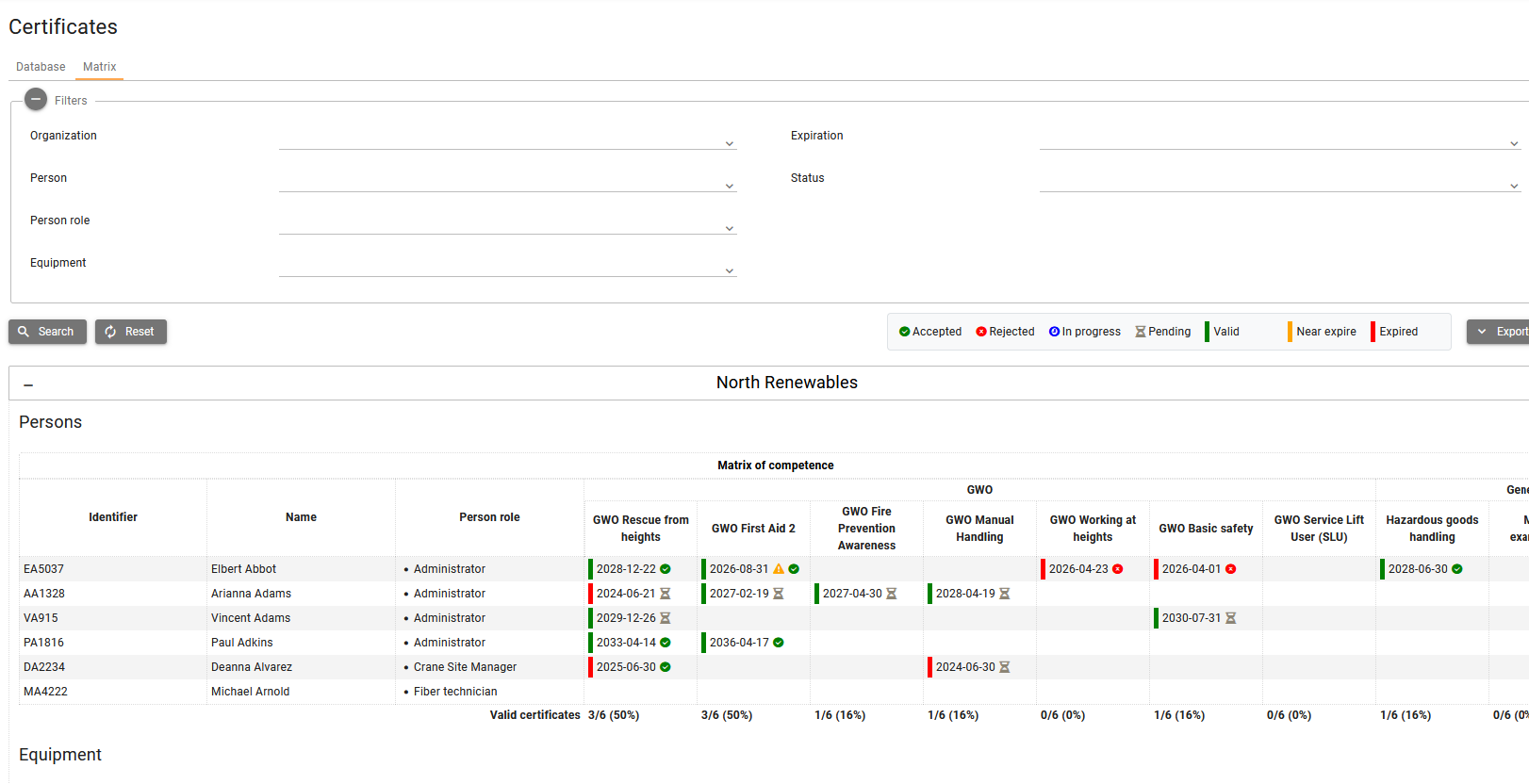
The Matrix tab on Health and Safety → Certificates shows compliance against required certificate types for people and equipment in the project. It is useful for audits and reviews: you can see at a glance who has valid documents, what is missing, and export the view to Excel.
Permissions
To open Health and Safety → Certificates and use the Matrix tab, your role needs the matching view permissions on Project Health and Safety → Certificates → Certificates matrix:
View Persons— Open the certificates matrix for persons (matrix of competence).View Equipment— Open the certificates matrix for equipment (matrix of certificates/documents).View Other Certificates— Open the certificates matrix for other certificate records.
You only see matrix sections for resource types your role is allowed to view; grant the combinations you need (persons, equipment, and/or others).
Use Where I can find my permissions in SUM-IT to verify.
Opening the Matrix
- Select the project on Projects.
- Open Health and Safety → Certificates.
- Open the Matrix tab.

When the matrix is empty
If required certificates have not been configured yet, the matrix may show a message that you need to define required types first. In that case, users of Project owners organizations with the Edit permission on Project Health and Safety → Settings, should open HSE settings and add the required certificate types.
Empty matrix message for a project owner

Empty matrix message for a subcontractor.

Reading the matrix
The matrix lists resources per organization in project (Matrix of competence for persons and/or Matrix of certificates/documents for equipment) and displays certificate types in columns. Cells show whether each required certificate is present and valid, near expiry, expired, or missing, according to the column definitions. Cells will also display a Certificate expires before project ends warning, if a certificate is valid, but its expiration date is before project ends (yellow triangle icon).
Each certificate column has a footer (subtotal row at the bottom of the table) that shows how many resources have a valid (not expired) certificate for that type, compared with all resources in the table for that panel, and the percentage of resources that meet that condition. The format is: [count with valid certificate]/[total resources] ([percent]) — for example 4/5 (80%) means four resources with a valid certificate out of five in scope. If you filter the matrix, the footer is calculated from the filtered rows only.

Use the same filters as on the database view where they are shared, then Search or Reset.
Export
Use the Export menu and Export to Excel to download the matrix for offline review.
