HSE settings
HSE settings is where authorized users of project owner organization define required certificates for the project and manage coverage for subcontractor organizations that do not run the HSE module on their own SUM-IT account. Coverage lets the owner track those subcontractors’ personnel and equipment certificates in this project under agreed billing rules. Enabling coverage allows subcontractors to upload and manage their certificates within the project, which are available for the project owner to review, accept or reject, and comment on.
This screen is visible only to project owners.
Permissions
- The
Viewpermission onProject Health and Safety → Settings— Allows to open the screen. - The
Editpermission on the same functionality — Allows to change required certificates, and if you are project owner, enable or disable coverage for subcontractors.
Check Where I can find my permissions in SUM-IT.
Opening HSE settings
- Select the project on Projects.
- Open Health and Safety and choose HSE settings.

Required certificates
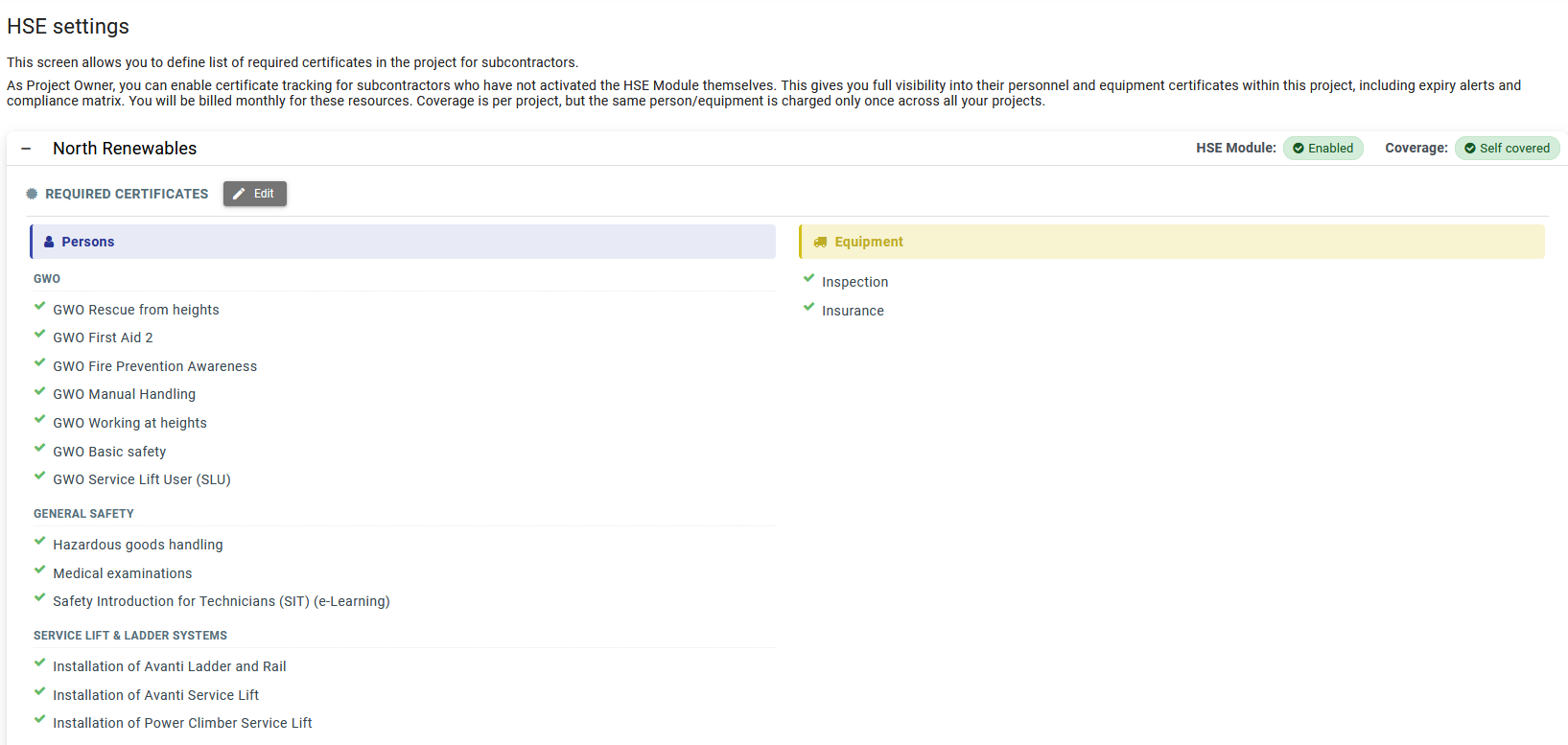
The Required certificates section lists which certificate types are mandatory in the project for persons and equipment, separately for each organization in the project. Choose Edit in that organization’s panel to add or change types.
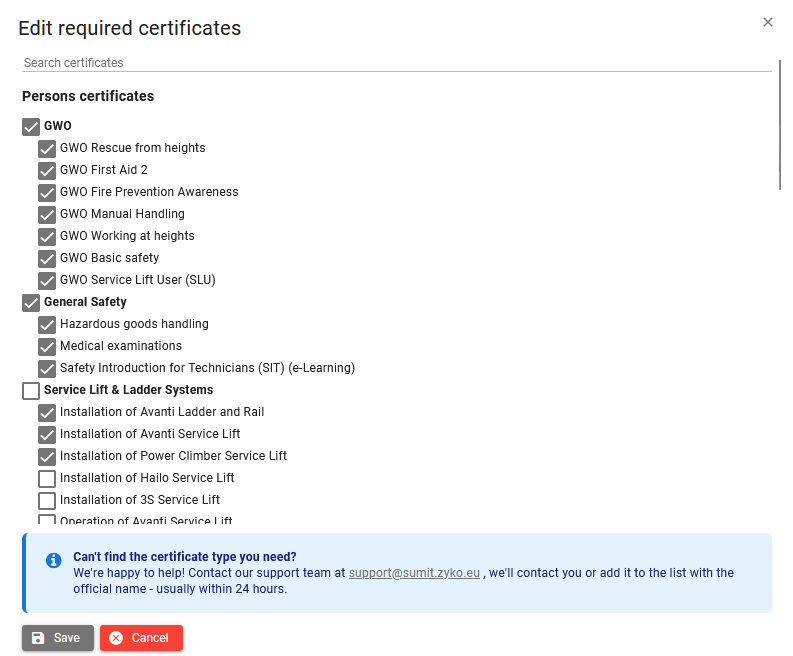
Edit required certificates (dialog)
Use this dialog to select which certificate types are mandatory for the organization panel where you clicked Edit.
- Search certificates lets you quickly filter both Persons certificates and Equipment certificates as you type. Types are grouped as follows:
- Persons certificates — Person certificate types available to select.
- Equipment certificates — Equipment certificate types available to select.
Choose the certificate types that are required for the project. When you Save, or when organizations later add resources to the project, any required certificate that already exists in the certificates database for those resources will automatically be included in the project. For subcontractors who do not have the HSE module enabled at their organization level, but are included in a project where the project owner has enabled coverage, certificates added under coverage are shared across covered projects—so subcontractors do not need to upload the same certificates each time they join a new covered project.
After required certificate types are saved, the Certificates Matrix can show compliance for all assigned persons and equipment in the project.
If a type is missing from the list, the application may show a short note with support contact — use that channel to request official certificate type names.
HSE module and coverage for subcontractors
Each organization panel on the settings screen shows whether the HSE module is enabled for that organization in the project, and who is responsible for covering the cost. As the project owner, you can choose to enable the HSE module for a subcontractor in the project and take on the associated costs.
- HSE module — Shows whether the organization has its own HSE module subscription (Enabled or Disabled).
- Coverage — Indicates how HSE module costs are managed for the organization in this project:
- Enabled by you since ... — You, as project owner, have enabled coverage for the organization in this project.
- Self covered — The organization has its own active HSE module subscription.
- Not covered — The HSE module is disabled for the organization. The organization cannot upload or manage its certificates in SUM-IT.
Selecting Enable coverage opens a confirmation dialog that describes what the subcontractor gets in the project, what the project owner can view and manage (including certificate acceptance/rejection), and relevant billing details.
Selecting Disable coverage opens a confirmation dialog explaining that the subcontractor's certificate data will no longer be visible in the project, billing stops from the next billing period, and historical records remain stored.
