Using the SUM-IT API from Power BI
This page describes the SUM-IT API Power BI template (.pbit). The template wraps the same REST API and OAuth client credentials flow documented under Authentication & API requests. Create your Client ID and Secret access key in the SUM-IT API screen before opening the template.
Download the template
| File | Description |
|---|---|
| sum-it-api.pbit | Power BI template file. Opening it creates a new report; your credentials are not stored inside the template. |
What is a .pbit file?
A Power BI template (.pbit) is a packaged report definition. It does not contain your data or secrets. When you open it, Power BI Desktop asks for parameters (for example API credentials and filters), then saves your work as a normal .pbix file that you own and can refresh.
Use the template in Power BI Desktop
- Download sum-it-api.pbit to your computer.
- Start Power BI Desktop.
- Open the template: File → Import → Power BI template, choose
sum-it-api.pbit, or double-click the file in Windows Explorer.
Power BI will prompt you to save a new .pbix file—pick a name and location. - When the parameters dialog appears, set at least the required values (see Template parameters for descriptions and First connection for the connector dialog, Load, and using
project_idwhen it is not known yet). Optional parameters can be left empty if the template allows it. - Wait for data load to finish. If a query fails, use Transform data → Data source settings or the query error details to verify parameters and connectivity.
- Use Refresh when you want up-to-date data. The model uses the client credentials flow to obtain an access token; token lifetime follows the API (see the authentication page).
First connection
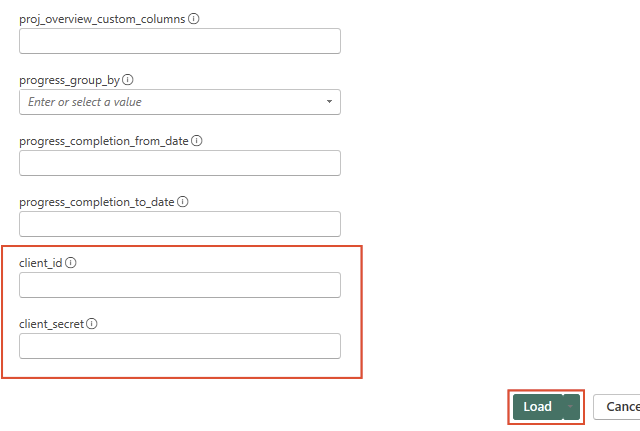
When the connector opens, fill in the parameters (including project_id, client_id and client_secret), then choose Load.
project_id is required. If you do not know the correct project identifier yet, enter 0 for the initial setup. After the first successful connection and data load, the model shows a list of projects—use it to find the ID you need, then set project_id to that value (Home → Transform data → Edit parameters in Power Query, or Edit parameters on the Home tab when Power BI offers it), apply, and Refresh so the report uses the intended project.

Template parameters
| Parameter | Required | Purpose |
|---|---|---|
| client_id | Yes | API Client ID from the SUM-IT API screen (same as in the REST examples). (Obtain Client ID and secret here.) |
| client_secret | Yes | Secret access key for that client. (Obtain Client ID and secret here.) |
| project_id | Yes | Project identifier for the data you want to load. If you do not know it yet, you can enter 0 for the first connection; after load, use the projects list to set the real ID (see First connection). Also required when loading project overview and progress data via the template. |
| proj_overview_from_date / proj_overview_to_date | No | Optional text date range for project overview queries (use the format expected by the API, e.g. ISO dates if applicable). See more details on Project overview. |
| proj_overview_custom_columns | No | Optional extra column selection for project overview when you need it. See more details on Project overview. |
| progress_completion_from_date / progress_completion_to_date | No | Optional text date range for progress / completion data. See more details on Progress. |
| progress_group_by | No | How to group progress data. Pick one value from the template’s dropdown (for example combining ORGANIZATION_ROLE, CONSTRUCTION_STAGE, UNIT_GROUP, TASK, UNIT in various levels—see parameter description when prompted). See more details on Progress. |
Exact behavior of each query is defined inside the template’s Power Query (M) steps. To inspect or change them, open Transform data after the file has loaded.
Related API topics
The Power BI template calls the same endpoints documented here:
- Projects — list projects and resolve
project_id - Project overview — overview reporting endpoints
- Progress — progress / completion data
Related
- Authentication & API requests — how to create keys and request tokens outside Power BI.