Certificates Database (organization)
Under System management, Certificates Database is your organization’s central place to manage person and equipment certificates, such as safety and training documents. These records belong to your organization and can be reused across projects when people and equipment take part in work registered in SUM-IT.
This menu is available only when your organization has enabled the HSE module. If HSE is available to you only because a project owner enabled coverage for your organization in a project, without enabling HSE for your organization itself, you will not see Certificates Database here — use the project Certificates Database (project) screen instead in that project.
This screen is not the same as the project Health and Safety → Certificates → Database tab. See Certificates Database (project) for project-level certificates and review.
Permissions
- To open Certificates Database under System management, you need the
Viewpermission onSystem Management → Persons certificatesand/orSystem Management → Equipment certificates, depending on which tabs you use. - To add, edit, or remove certificates, you need the matching
Create/EditorDeletepermission on the same functionalities.
See Where I can find my permissions in SUM-IT.
Opening the screen
- In the main menu, open System management → Certificates Database.

- The page title is Certificates Database. Use the tabs Persons and Equipment to switch between person certificates and equipment certificates.
Working with certificates
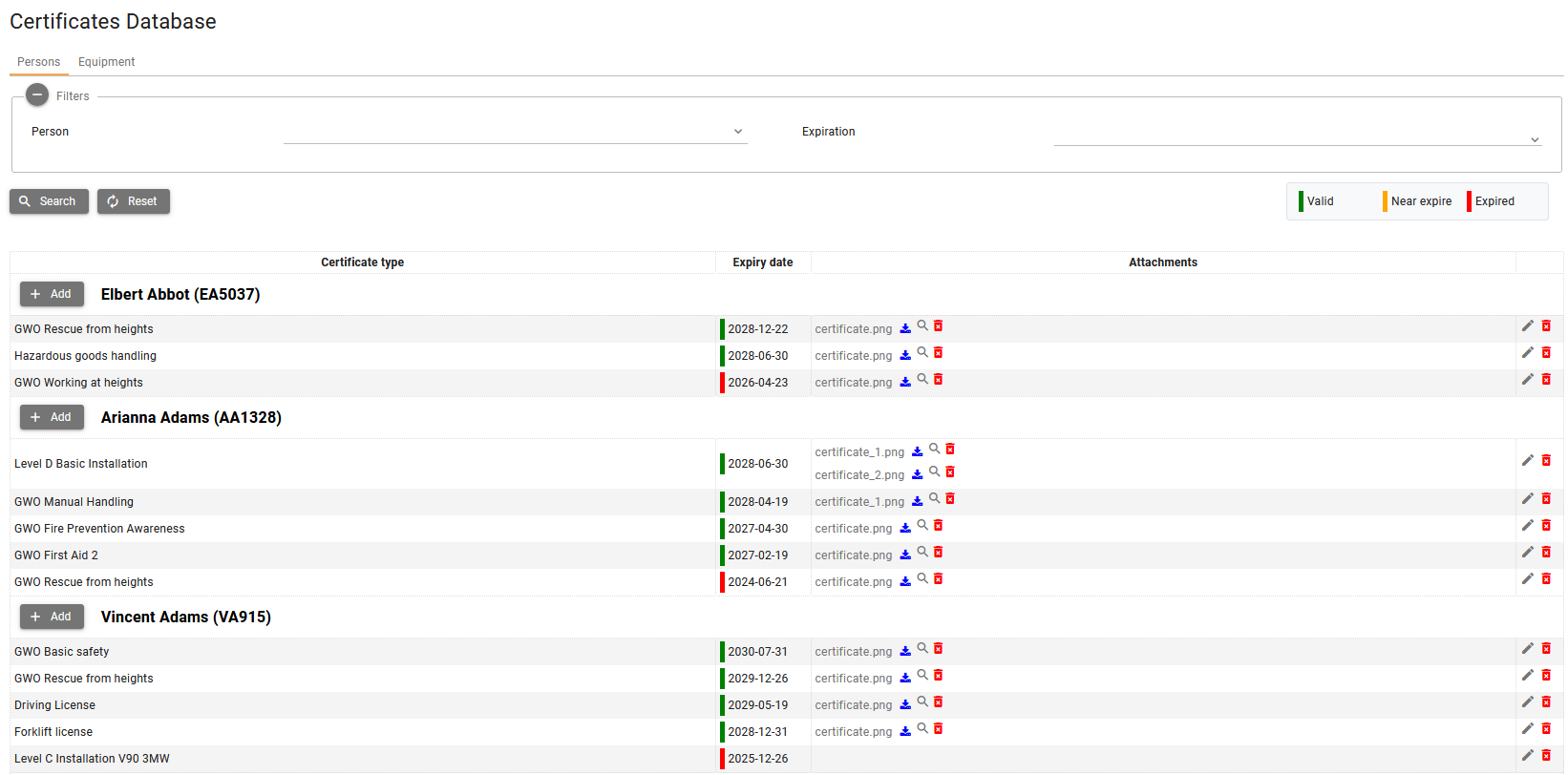
On each tab you can maintain the list of certificates for your organization’s people or equipment (exact buttons depend on your permissions). After running Search, the table shows certificate rows grouped by person (on Persons tab) or by equipment (on Equipment tab).
Table columns:
Certificate type — The certificate type assigned to the person or equipment (for example training or technical certificate category).
Expiry date — The column displaying certificate expiration date, highlights certificates that are valid, near expire, or expired according to the expiry date and your organization’s near-expiry threshold setting.
Attachments — The list of files linked to that certificate. From this column you can download attachments, open supported files in preview, and delete attachments when your permissions allow.
Table actions
- Add first certificate / Add — Creates a certificate for the selected person or equipment.
- Edit (pencil icon) — Opens an existing certificate in the edit certificate dialog.
- Delete (trash icon) — Deletes the certificate after confirmation.
- Attachments column — For each file you can:
- click the file name or download icon to download,
- use the view icon (when file type preview is supported),
- use the trash icon to delete the attachment (with confirmation).
Create / Edit certificate dialog
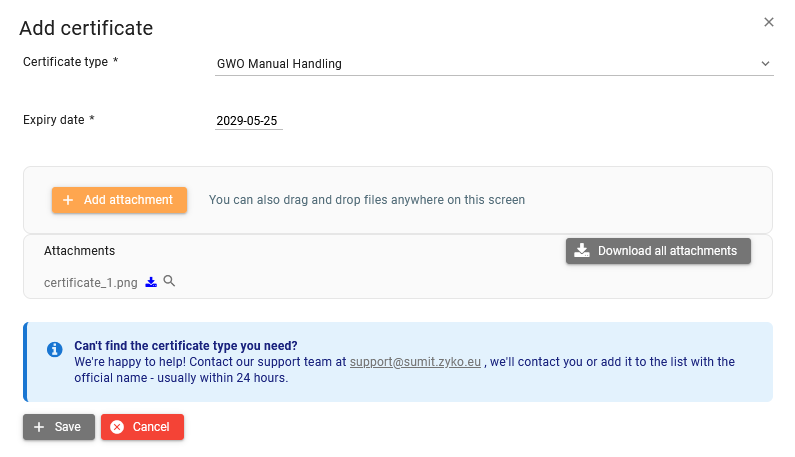
When you click Add or Edit, SUM-IT opens the certificate dialog.
Main fields:
- Certificate type — Required; selected from the available list.
- Expiry date — Required; set using the date picker.
Attachments in the dialog:
- Use Add attachment to upload one or more files (drag-and-drop is supported).
- Uploaded files are listed in the dialog, where you can download or delete them before saving.
Dialog actions:
- Save — Saves the certificate with expiry date and attachments.
- Cancel — Closes the dialog without saving new changes.
If you cannot find a required certificate type, use the support note in the dialog footer to request it.
How this relates to projects
- Keeping organization certificates up to date helps ensure correct data when the same people and equipment appear in projects.
- When you add or edit a certificate for a person or equipment in either the organization Certificates Database or the project Certificates Database, the change is reflected in both places—they stay in sync. Only certificates created specifically in the project and not linked to people or equipment in your organization's register (such as "other certificates") are stored only in the project.
Near-expiry and expired person and equipment organization certificates can generate alerts for users with the Create/Edit permission on the matching System management certificate functionality. Details: Certificate notifications.