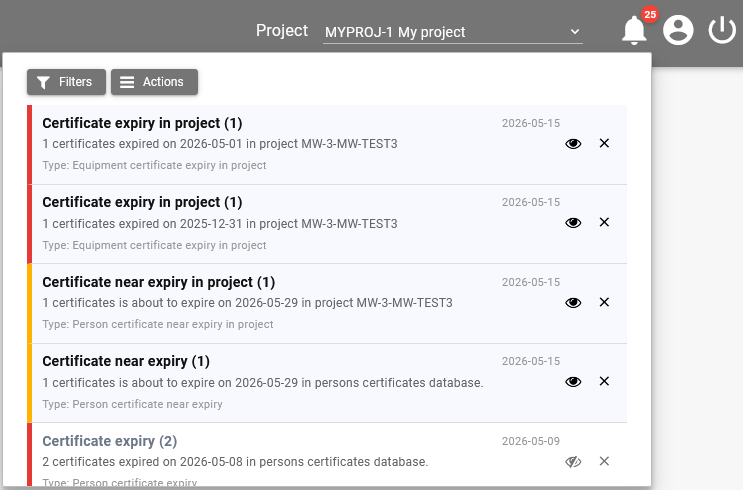
Certificate notifications
SUM-IT can raise in-app notifications when certificates are about to expire or already expired. These alerts help you act before work is delayed by missing documentation.
Permissions and who receives alerts
Notifications are targeted at users who can work with the relevant certificates in SUM-IT:
| Certificate context | Who is notified |
|---|---|
| Project certificates (Health and Safety → Certificates → Database) — persons | Users who have Create/Edit and View Persons permissions on Project Health and Safety → Certificates → Database in the same project. |
| Project certificates — equipment | Users who have Create/Edit and View Equipment permissions on the same functionality in the same project. |
| Project certificates — other | Users who have Create/Edit and View Others permissions on the same functionality in the same project. |
| Organization certificates (System management → Certificates Database) — Persons tab | Users with the Create/Edit permission on System Management → Persons certificates. |
| Organization certificates — Equipment tab | Users with the Create/Edit permission on System Management → Equipment certificates. |
For project certificates, you need both the Create/Edit permission and the view permission that matches the certificate type. A view-only role (for example View Persons without Create/Edit) does not receive these alerts.
When your project role or permissions change, the next notification processing cycle updates which alerts you see (for example, if you lose the permissions above, existing project certificate notifications are removed from your list).
Only organizations that use HSE (organization module subscription and/or project coverage where applicable) are included in the certificate checks that drive these notifications.
If you are unsure, open Where I can find my permissions in SUM-IT.
Notification types
The notification panel shows a type label. For certificates you may see:
- Person certificate near expiry in project
- Person certificate expiry in project
- Equipment certificate near expiry in project
- Equipment certificate expiry in project
- Other certificate near expiry in project
- Other certificate expiry in project
- Person certificate near expiry (organization certificates)
- Person certificate expiry (organization certificates)
- Equipment certificate near expiry (organization certificates)
- Equipment certificate expiry (organization certificates)
Severity — Near-expiry alerts are treated as medium severity; expired certificates as high severity.
What triggers an alert?
- Alerts are generated by the system on a schedule (they are not sent by pressing a button on the certificate screen). When you add or change certificates, the next processing cycle updates who should be notified.
- Near expiry uses your organization’s certificate near-expiry threshold (number of days before expiry). Certificates inside that window can produce near expiry notifications.
- Expired notifications apply once the expiry date is past. When a certificate moves from near expiry to expired, the system replaces the near-expiry notification with an expiry notification for that grouping.
Grouping
For project certificates, several rows that share the same project, organization, expiry date, and resource type (person, equipment, or other) are grouped into one notification. The title then includes a count, such as Certificate near expiry in project (2). Organization database certificates are grouped into one notification when they share the same organization, expiry date, and resource type (person or equipment).
The message text summarizes how many certificates are affected, the expiry date, and (for project notifications) the project code and name. For organization database alerts, the message refers to the persons or equipment certificates database.
Using the notification list
Open the bell icon in the top bar. You will see your notifications with title, message, date, and type. You can:
- Filter by type, severity, and status (when filters are available).
- Mark as read or Mark as unread using the eye icon.
- Dismiss a single notification or use bulk actions such as Dismiss all when offered.
- Click the row to mark an unread notification as read (standard behaviour in the notification list).