Tasks
Use System Management -> Tasks to keep the task catalog for your organization. That list is what your organization chooses from when you add tasks under construction stages in a project later (see Tasks and construction stages).
This screen is not the project Tasks and construction stages setup. Tasks here belong to your organization. In a project, you pick from this catalog when you build the project structure.
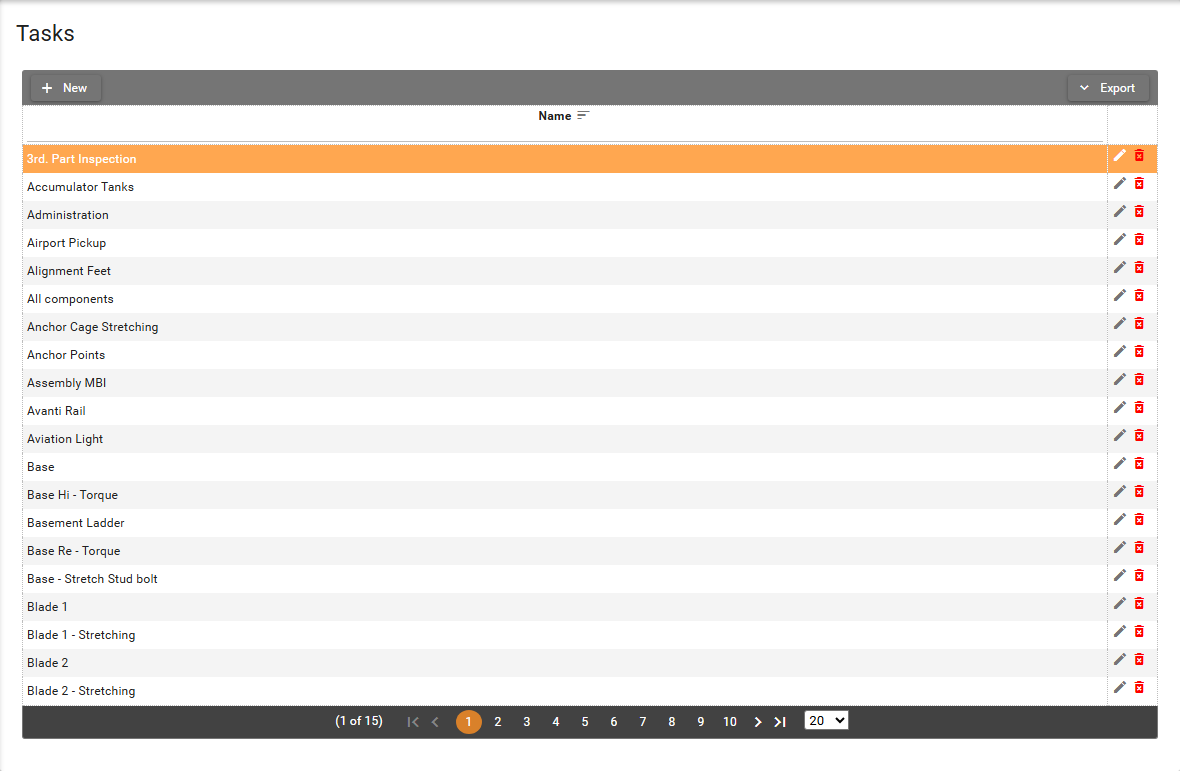
The table lists tasks for your organization.
- Name column contains the task name and is unique within your organization.
Open Export and then Export to Excel to download the table.
Permissions
The screen is visible to users with View permission on
System Management -> Tasks functionality.
- Users with
Create/Editcan add and edit tasks. - Users with
Deletecan remove tasks from the catalog.
See Where I can find my permissions in SUM-IT.
Without View permission, Tasks does not appear under System Management.
Without Create/Edit or Delete permission, those buttons stay hidden.
Add, edit, or delete tasks
- Click New. The Add task dialog opens. Name is required. Cancel closes the dialog without saving.

- Fill in Name, then click Save. The new row appears in the table.
If another task in your organization already uses the same Name, SUM-IT shows a warning that a record with the same data already exists, and the new row is not saved.
-
Click the Edit button
 on a row, or double-click the row.
Edit task opens with the current Name.
on a row, or double-click the row.
Edit task opens with the current Name. -
Change Name if you need to, then click Save. The table shows the updated value.
-
Click the Delete button
 on a row.
The Delete Task dialog asks if you want to delete that task.
on a row.
The Delete Task dialog asks if you want to delete that task. -
Click Yes. The row is removed from the table.
You cannot delete a task that is still in use. When that happens, SUM-IT shows the warning Cannot delete this record, because of dependencies. That happens when the task is used in either of these places:
- Under a construction stage in a project (Tasks and construction stages screen).
- In a project template for your organization.