Estimates
Use Estimates to enter the hours you expect the work to take. That helps you track how well the project is going.
On the template, enter these estimates for the tasks assigned to each organization role. When you create a project from the template, SUM-IT copies the estimates to the organizations in the project that have those roles.
Persons and equipment estimates
For a task that uses a unit type, enter the person hours and the equipment hours for that unit type. The hours are the time needed to complete the task for one unit of that type.
Estimates for tasks that are not related to a unit
Some tasks are not related to a unit. For those tasks, the hours are the time the assigned organization needs to complete the task.
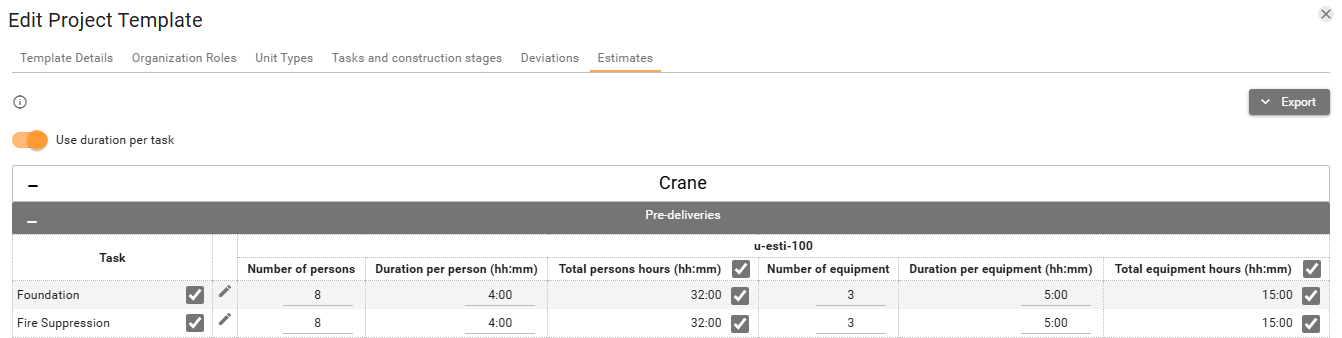
Each organization role and each construction stage can be collapsed.
You can enter estimates for tasks that are enabled for a unit type. See Tasks and construction stages for more about enabling a task for a unit type.
The hours you enter are later shown on Progress and the Dashboard. There you can compare them with the time registered in the project.
Use duration per task
-
Leave Use duration per task on. It is on by default. You estimate how long the task takes. You also set how many people you plan to use. You set how much equipment you plan to use. SUM-IT calculates the total hours for the task. When the duration of the task is 10 hours and 5 persons are taking part, the total is 50. SUM-IT shows that total in Total persons hours (hh:mm). Equipment uses the same calculation. The total cells show the calculated hours. You cannot type in those cells while the switch is on.
-
Turn Use duration per task off when you only want the total hours. You enter the total hours for the people assigned to the task. You enter the total hours for the equipment. You do not enter the duration of the task itself. You do not enter how many people you will use. You do not enter how much equipment you will use. Confirm disabling duration per task opens. Yes removes the data in Number of persons and Duration per person (hh:mm). It also removes the data in Number of equipment and Duration per equipment (hh:mm). The totals stay. The headers then read Persons estimated hours (hh:mm) and Equipment estimated hours (hh:mm). No leaves Use duration per task on.
Editing the estimates
-
Click a number cell or a duration cell, enter the value, and leave the cell. SUM-IT saves the cell.
-
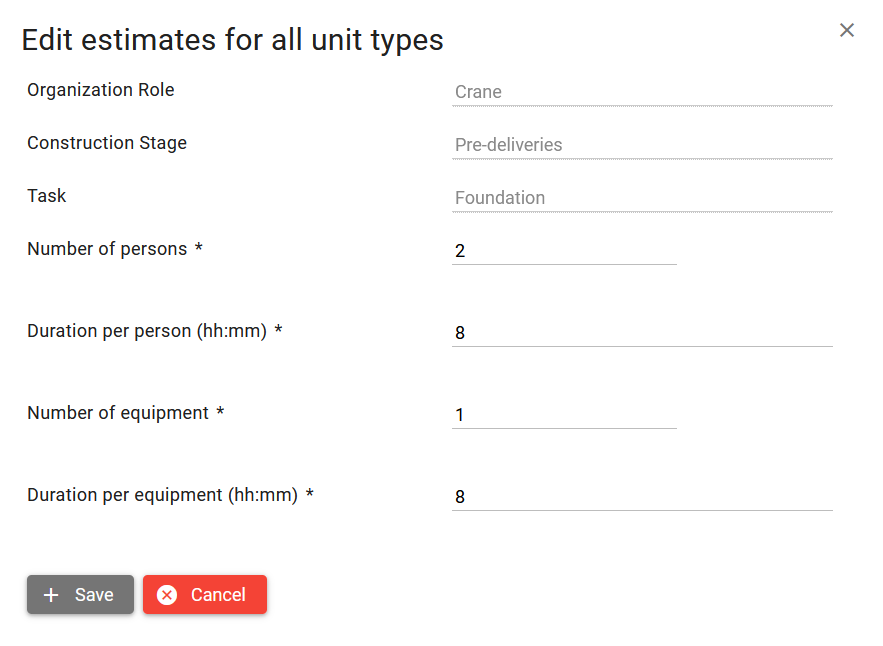
Click Edit estimates for all unit types when the hours for the task are the same for every unit type. This helps when the template has many unit types. This will open the dialog where you can enter the hours. Save applies them to all unit types for that task. Cancel closes the dialog without saving.
Disabling estimates for task
- Clear the checkbox on a task to turn that estimate off. That may be useful for a highly unpredictable task. You skip the hours when you cannot guess them before the work starts. A repair is one example. It might take one hour or a whole day, depending on the damage. It may also be useful for a routine task that does not need an estimate, such as a daily meeting or lunch break.
Exporting
- Open Export and then Export to Excel to download the estimates.
Permissions
To change the hours you need to have Create/Edit permission on System Management -> Project Templates functionality.
There is no separate Estimates permission on this tab.
Who can open a template is described in Project templates.