Deviations
During a project, situations that were not planned can cause standby and delays. The cause may be bad weather, a damaged road, an accident, or broken equipment.
A deviation number is the category for that cause. Later, users select the deviation number when they record stand by or extra work, so the cost of that delay can be tracked. You can also enable a deviation number for the work schedule. That lets people categorize regular work and track its cost when they need to.
The template stores these deviation numbers. When a project is created from the template, SUM-IT copies them into the project. On the project you can add an estimated cost and tracking for each deviation number. That is described in Deviation numbers.
Open the Deviations tab after the template has been saved. New is above the table. The columns are Number, Name, Description, and Work sch. enabled. Each row has Edit and Delete.

Work schedule
Work sch. enabled on the row is the same choice as Work schedule enabled in the dialog. Select it when users should be able to choose this deviation number on a work schedule activity. A work schedule activity only lists deviation numbers that have this selected. Stand by and extra work can use a deviation number whether this is selected or not. SUM-IT saves the checkbox on the row as soon as you change it.
Adding a deviation number
- Click New. The Create Deviation number dialog opens. Number and Name are required. Work schedule enabled and Description are optional. Description allows 5000 characters. A counter under Description shows how many characters are left.
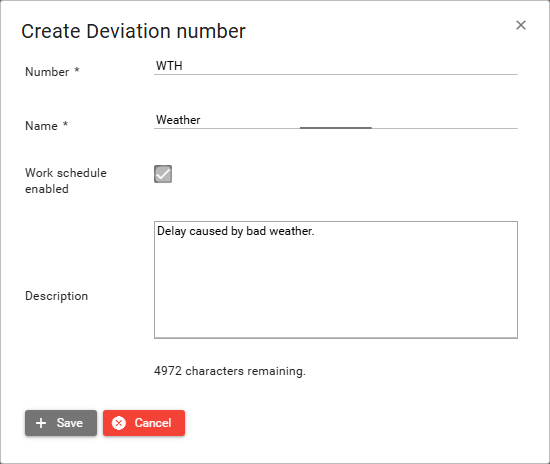
- Fill in Number and Name, and the optional fields if you need them, then click Save. The new row appears in the table. Cancel closes the dialog without saving.
Editing a deviation number
Click the Edit button  on a row, or double-click the row.
Edit Deviation number opens with the current values.
Change the fields you need, then click Save.
The table shows the updated values.
on a row, or double-click the row.
Edit Deviation number opens with the current values.
Change the fields you need, then click Save.
The table shows the updated values.
Removing a deviation number
Click the Delete button  on a row.
The message is Do you want to delete deviation: followed by the deviation number.
Click Yes.
The row is removed from the table.
No leaves the row in place.
on a row.
The message is Do you want to delete deviation: followed by the deviation number.
Click Yes.
The row is removed from the table.
No leaves the row in place.