Project templates
Use System Management -> Project Templates to keep reusable project templates for your organization. A template stores the configuration for a project. That configuration includes the organization roles, the unit types, and the construction stages and tasks required to complete the project. It also includes the list of deviations and the estimates.
When you create a new project and choose a template, SUM-IT copies that template’s organization roles, unit types, construction stages, tasks, and deviations into the project. How to create a project is covered in Project details.
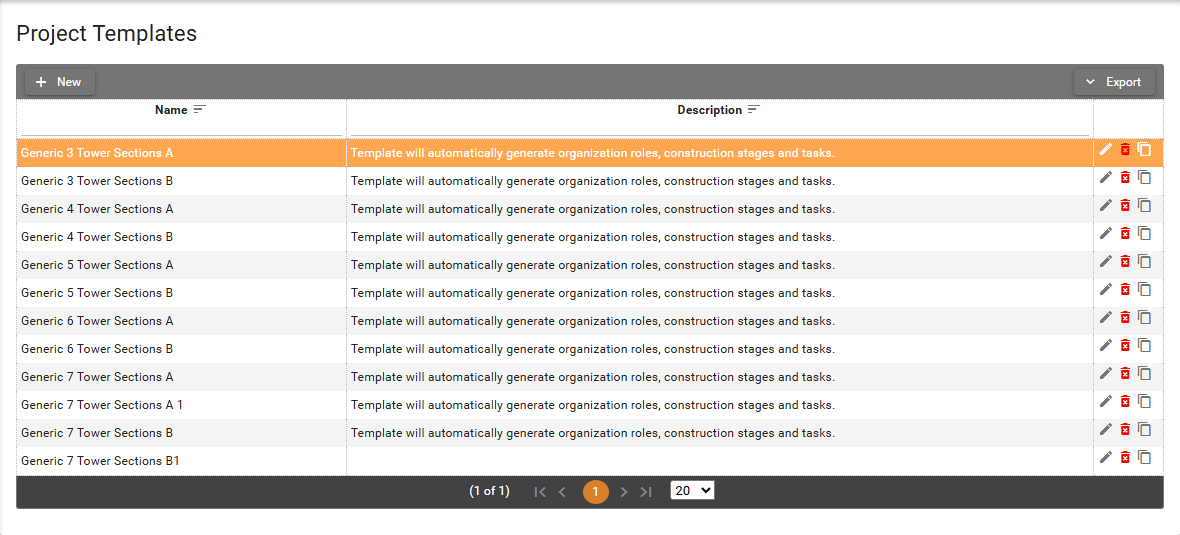
The table lists the templates for your organization.
- Name is the template name.
- Description is a short note about the template.
Each row has Edit, Delete, and Copy. You can filter Name and Description. The table is split into pages.
Open Export and then Export to Excel to download the table.
Permissions
The screen is visible to users with View permission on
System Management -> Project Templates.
- Users with
Create/Editcan add, edit, and copy templates. - Users with
Deletecan remove a template from the list.
See Where I can find my permissions in SUM-IT.
Without View, Project Templates does not appear under System Management.
Without Create/Edit, New, Edit, and Copy buttons stay hidden.
Double-clicking a row does not open the template either.
Without Delete, the Delete button on the list stays hidden.
Inside a saved template, adding and removing organization roles, unit types, and deviations follows Create/Edit.
Set up a template
Use the pages (tabs) in this section to fill each part of the template.
-
Add the template name and description on Template details. The other tabs stay disabled until the template is saved.
-
Add the organization roles on Organization roles.
-
Add the unit types on Unit types.
-
Attach construction stages and tasks on Tasks and construction stages.
-
Add the deviation numbers on Deviations.
-
Enter the estimates on Estimates.
Edit, copy, or delete a template
-
On the list, click the Edit button
 on a row, or double-click the row.
Edit Project Template opens on Template Details.
All six tabs are available: Template Details, Organization Roles, Unit Types, Tasks and construction stages, Deviations, and Estimates.
Change the name and description on Template details.
on a row, or double-click the row.
Edit Project Template opens on Template Details.
All six tabs are available: Template Details, Organization Roles, Unit Types, Tasks and construction stages, Deviations, and Estimates.
Change the name and description on Template details. -
Click Copy on a row. Add Project Template dialog opens with the copied Template Name and Description. The other tabs stay disabled until you save.
-
Change Template Name, then click Save. SUM-IT creates the new template. It also copies the organization roles, unit types, construction stages, tasks, deviations, and estimates from the original template.
-
Click the Delete button
 on a row in the list.
The dialog title is Delete Project Template.
The message is Do you want to delete the record: followed by the template name.
No leaves the row in place.
on a row in the list.
The dialog title is Delete Project Template.
The message is Do you want to delete the record: followed by the template name.
No leaves the row in place. -
Click Yes. The row is removed from the table.