Template details
Use the Template Details tab to name the template and add a short description. The other tabs stay disabled until you save.
-
Click New on Project templates screen. The Add Project Template dialog opens on the Template Details tab. Template Name is required. Description is optional.
The buttons are Save, Next To Organization Roles, and Cancel. The other tabs stay disabled until the template is saved. Cancel closes the dialog without saving.
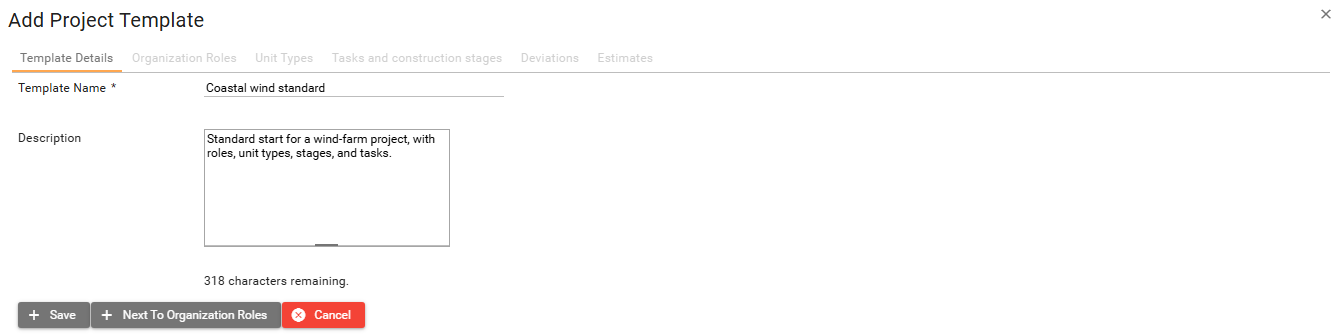
- Fill in Template Name and Description, then click Save. The dialog stays open. The other tabs become available.
You can click Next To Organization Roles instead of Save. SUM-IT saves the template and opens the Organization Roles tab.
- To change an existing template, open it from the Project templates screen with Edit button
 or a double-click.