Tasks and construction stages
Use this tab to attach construction stages and tasks to each organization role on the template. The stages come from your organization’s construction stage catalog (see Construction stages). The tasks come from your organization’s task catalog (see Tasks).
Take your time when defining the project structure to make it correctly. Project structure will later have impact on statistics, estimates and the way the project costs are displayed. Example pitfalls when configuring the project:
-
Tasks that are not needed for unit types are left as enabled - in that case, no activity and progress will be registered for the task and your overall progress for construction stage and later for project will never be 100%. The project estimates will include time to complete that task for all units of that type. Also users can by mistake register some activities against such task and unit of that type.
-
Tasks that are not related to units are left as unit related - in that case users usually register all activities that task against one unit or randomly against different units which will break your progress tracking and may make cost tracking more difficult.
-
Adding one task in SUM-IT which in reality is more than one task - a good example of that will be Mobilization and Demobilization tasks on construction of a wind farm. Users often add one task for that in SUM-IT and name it Mob/Demob despite the tasks are completed in different time and are paid separately by lump sum. As a consequence, there is no way to correctly configure lump sum, track cost and progress in cases like this.
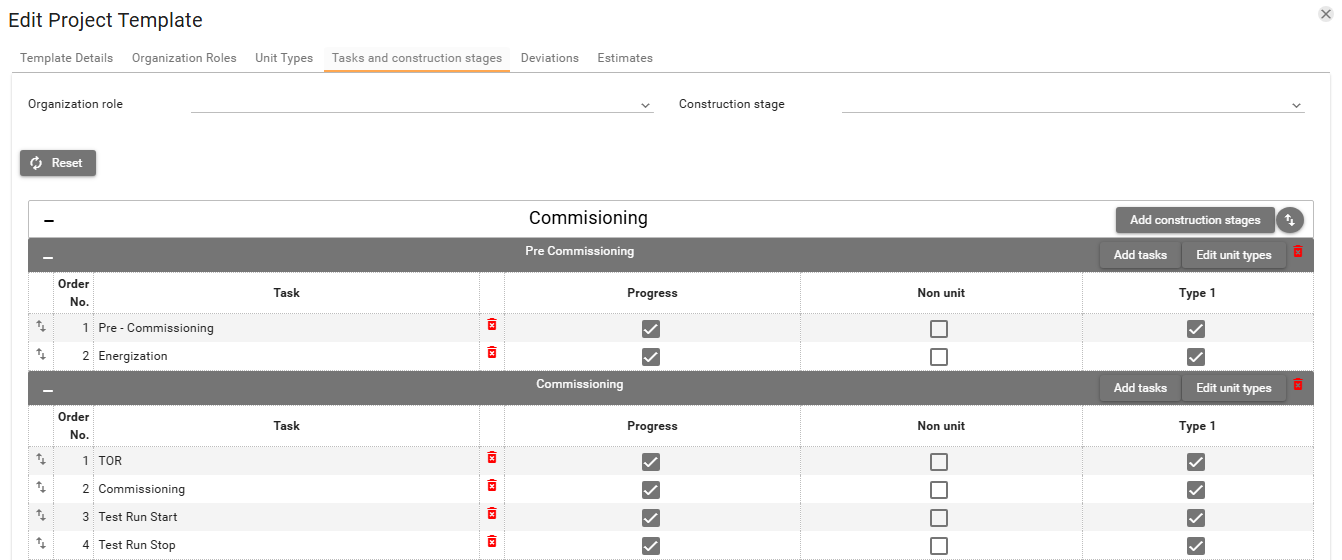
Each organization role has its own panel. Add construction stages and Reorder construction stages are on that panel. Inside a stage, the task table shows Order No., Task, Progress, Non unit, and one column for each unit type.
Filtering
Organization role and Construction stage at the top limit what you see. Reset clears those filters.
Construction stages
Adding construction stages
Click Add construction stages on an organization role to choose stages from your catalog.
- Click Add construction stages. The dialog names that role and lists Available construction stages.
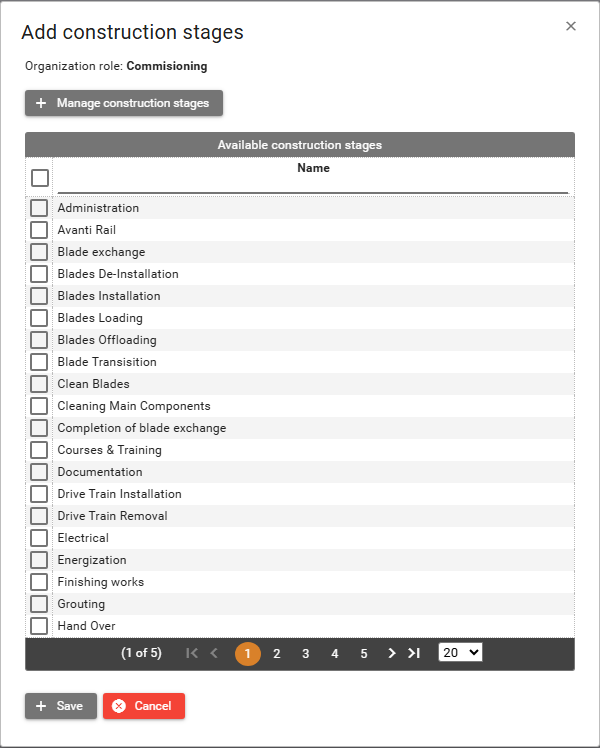
- Select the stages you want, then click Save.
Manage construction stages
The Manage construction stages button is visible in the add dialog when you have View and Create/Edit on System Management -> Construction Stages.
Use it when you need a new stage in the catalog before you add it to the template.
If this template has no unit types yet, SUM-IT shows Cannot add construction stage. Please define unit types in the project template first. Add at least one unit type, then try again.
Reordering construction stages
Click Reorder construction stages to change the order of stages for that role. Drag a row to a new position. SUM-IT saves the order when you drop the row. Click Close when you are finished.
Removing a construction stage
Click the Delete button  on a construction stage, then click Yes.
The stage is removed from that organization role.
on a construction stage, then click Yes.
The stage is removed from that organization role.
Tasks
Adding tasks
On a construction stage, click Add tasks to choose tasks from your catalog.
- Click Add tasks. The dialog lists tasks from your organization’s task catalog.
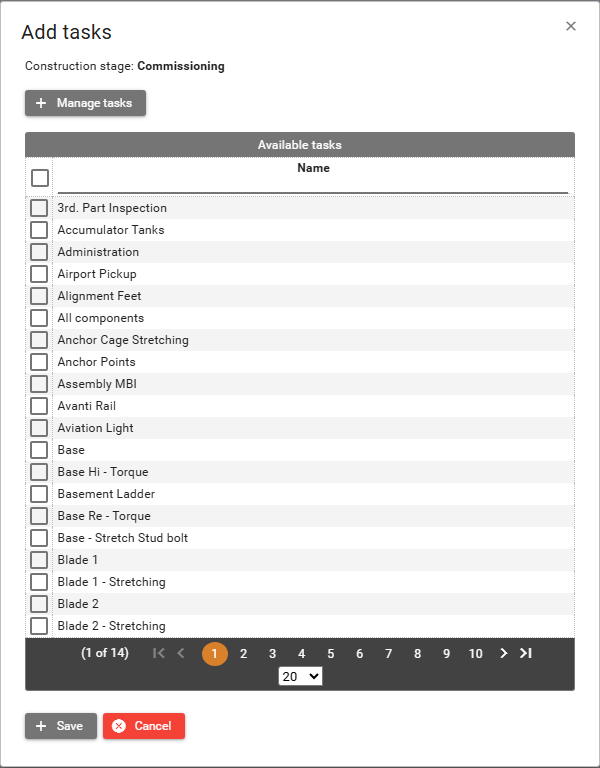
- Select the tasks you want, then click Save.
Manage tasks
Manage tasks is in that dialog when you have View and Create/Edit on System Management -> Tasks.
Use it when you need a new task in the catalog before you add it to the stage.
Edit unit types
Click Edit unit types on a stage to choose which unit types from this template apply to that stage. The dialog shows the stage name.
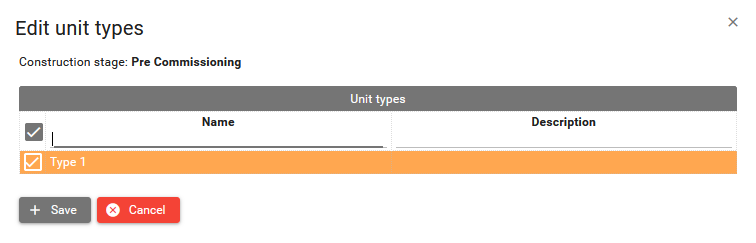
Select the unit types, then click Save.
Task settings
For each task in the construction stage, you can enable or disable the following properties:
-
Progress measures the completion of the task. Clear the checkbox when you do not need to measure progress for that task. This is useful for a task that is hard to predict, or for a routine task such as a daily meeting, where registering progress does not help. You can still create an estimate for the task, and you can still register activities against it.
-
Non unit means the task is not tied to any unit in the project. Select it when the task is part of the construction stage, but it is not part of building one particular unit. When parts are offloaded, you may not yet know which turbine they belong to. Office work and documentation can be required to finish the stage, and still not belong to one unit. A daily meeting on site is another case: it happens at the site, and it is not about one unit.
-
The checkbox in a unit-type column turns that task on or off for that type of unit. Clear it when the task is not required for that unit type.
Reordering tasks
Drag a task row up or down to change its order. Order No. shows the new position.
Removing a task
Click the Delete button on a task, then click Yes.
The task is removed from the stage.