Details
The Details tab is the day's activities. They are grouped by construction stage, and then by unit group.
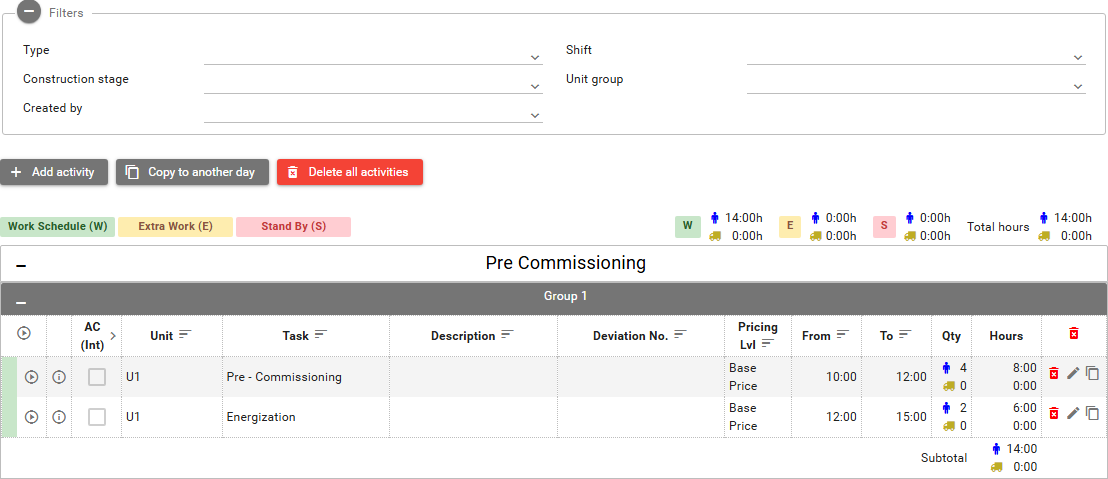
1. Filters
Filters has Type, Shift, Construction stage, Unit group, and Created by.
2. Badges and totals
Three badges sit above the table: Work Schedule (W), Extra Work (E), and Stand By (S). There is no separate legend heading.
The small letters above the hours use the titles Work schedule hours, Extra work hours, and Stand by hours. The person icon is Persons. The equipment icon is Equipment.
On the opened in-progress report, W showed 14:00h for persons and 0:00h for equipment. E and S were 0:00h. Total hours was 14:00h for persons and 0:00h for equipment.
On a crane report that was being reviewed, the hours were on equipment instead. W was 0:00h for persons and 6:00h for equipment. Total hours matched that.
3. Construction stage and unit group
Each stage is its own panel. Each unit group inside that stage is its own panel.
The in-progress report showed the stage Pre Commissioning and the unit group Group 1. The crane report showed Main Installation and Main Installation 1.
The activity columns are AC (Int), Unit, Task, Description, Deviation No., Pricing Lvl, From, To, Qty, and Hours.
AC (Int) is the column label. The hover text is Accepted activities. A checkbox on the row is Accept activity. On the expenses table, the same column's hover is Accepted expenses.
4. Expanded row
Expand/Collapse all rows opens or closes every activity row.
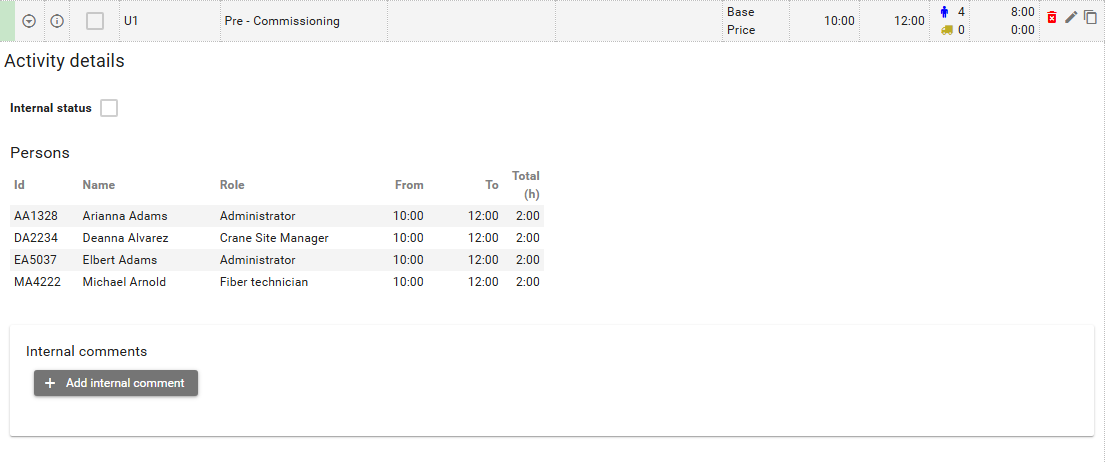
An expanded row shows Activity details and Internal status. When the activity has people, it lists Persons with Id, Name, Role, From, To, and Total (h).
Role here is the on-site role. On the opened row those roles included Administrator, Crane Site Manager, and Fiber technician. Each person was 10:00 to 12:00, with a total of 2:00.
The row badge hover is Activity type: Work Schedule when the activity is work schedule.
5. Comments
On a report you review, the page shows Comments and change log for the two organizations. The opened example named North Renewables and Blue Construction. Add public comment adds a comment for the other organization.
Internal comments is a separate block. Add internal comment adds a comment there. Show all has the hover Show all logs.
Your own report can show Internal comments without the public block. The expanded activity can show Internal comments as well.
6. Expenses
Expenses sits on this tab, under the activities. Add expense starts a new expense.
The opened report had a Fuel expense. The description was test. The quantity was 2.00 L. The total was 20.00.
The cost columns were North Renewables cost (internal) and North Renewables cost (external). Under those, the table shows Unit price (€), Overhead (%), and Total price (€).
Other columns on that table are Category, Description, Deviation No., Qty, and Qty unit. Row actions are Edit and Delete. The header action is Delete all expenses.
Actions
On your own in-progress report, the buttons above the activities were:
- Click Add activity to open the activity dialog. The fields are described in Create and edit activity.
- Click Copy to another day to switch into copy mode. What that mode does is described in Daily report.
- Click Delete all activities to remove the activities in the report.
On a report you review, the button above the activities was Accept all activities. Add activity and Copy to another day were not on that report.
Row actions on your own report are Edit Activity, Delete Activity, and Copy Activity.