Attachments, timeline, and Time-it
These three tabs sit on the daily report next to Details. Time-it is on your organization's report. It is absent on a report you only review.
1. Attachments
Attachments holds files for the report. The tab shows a count, such as Attachments 0 when nothing is attached.

Add attachment starts an upload. You can also drag and drop files anywhere on this screen.
When the report has no files, the tab says Nothing attached yet.
2. Timeline
Timeline shows the day's resource bars. On the opened report the bars named each person, the on-site role, and the total hours. One bar read Arianna Adams (Administrator), with a total of 2:00.
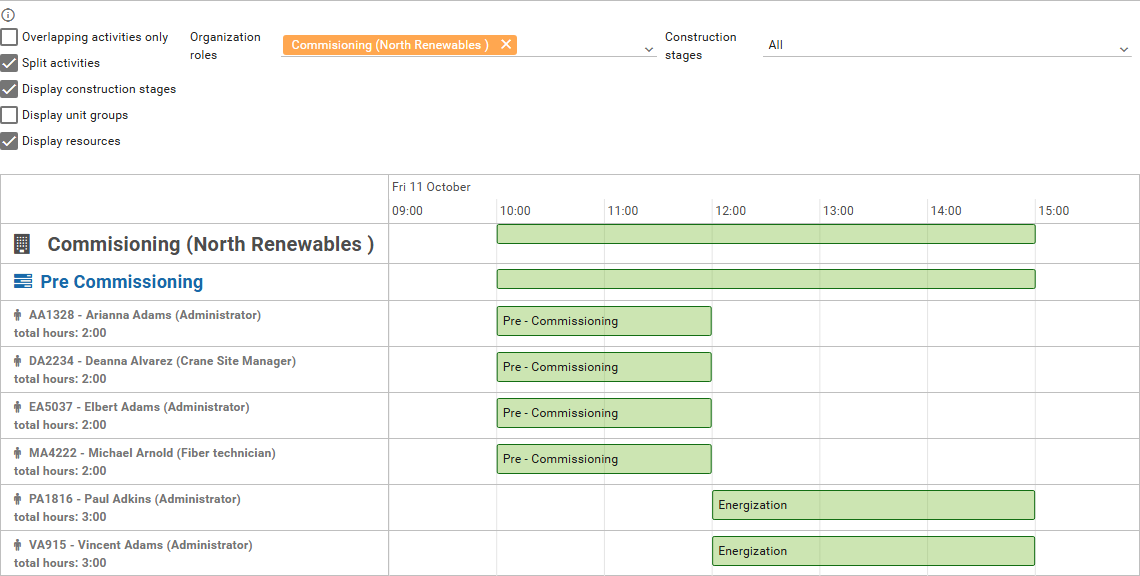
The info icon explains the bars:
- You can edit activities that belong to your organization.
- Those activities must use the same organization role as the current daily report.
- Double-click an empty space to open a dialog for a new activity.
- Double-click an activity bar to edit the start and end. Go to activity opens the activity.
- Drag the left or right edge of a bar to change the start or the end.
- Click a bar once, then drag it, to move the whole activity.
- A click also shows a delete icon at the top right of the bar. That icon removes the activity resource.
- Hold Ctrl and use the mouse wheel to zoom.
- When there are many resources, a vertical scrollbar on the left moves through them.
The tab also has Overlapping activities only, Split activities, Display construction stages, Display unit groups, and Display resources. It also has Organization roles and Construction stages. The opened report listed Commisioning (North Renewables) and Crane (Blue Construction) under Organization roles.
3. Time-it
Time-it lists time logs for this report, grouped by construction stage and unit group. The opened report used Pre Commissioning and Group 1.

The same badges as Details sit above the table: Work Schedule (W), Extra Work (E), and Stand By (S).
The columns are Name, Role on site, Unit, Task, Status, Description, Duration, Start time, and End time.
On the opened report, Deanna Alvarez had the role Crane Site Manager, unit U1, and task Pre - Commissioning. The status was In progress. The duration was 2h, from 10:00 to 12:00. Vincent Adams on Energization was 3h, from 12:00 to 15:00.
- Generate activity
- Add to existing activity
- Auto group time logs
Those three buttons were on the tab. Show difference and Synchronize were not.