Create and edit activity
Edit Activity is the dialog for an activity that is already on the report. Add activity is the button that starts a new one. The fields below are the ones that were on Edit Activity.
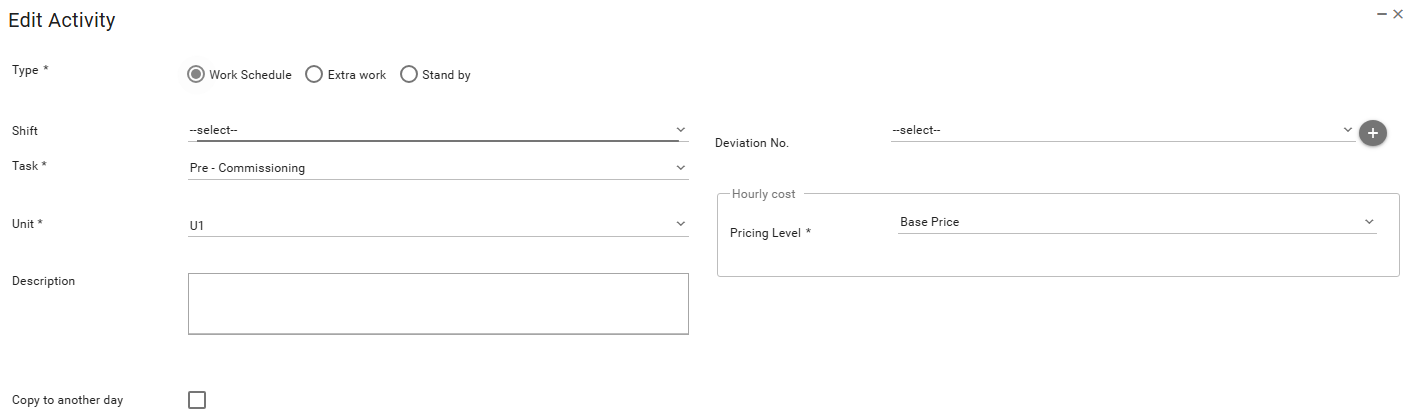
1. Fields
Type is required. The choices are Work Schedule, Extra work, and Stand by.
Task is required. On the opened activity it was Pre - Commissioning.
Unit is required. On the opened activity it was U1.
Pricing Level is required. It sits under Hourly cost. On the opened activity it was Base Price. Other choices in that list were Extra Work 0%, Extra Work 100%, Stand By 0%, and Stand By 100%.
Shift offers Day Shift and Night Shift. The opened activity had no shift selected.
Description is a free text field. Deviation No. is a list, with a button beside it.
Copy to another day on this dialog is a second way to copy. The checkbox was on the dialog. It was not ticked, and the activity was not saved. What copy mode does with other days is described in Daily report.
Save and Cancel are at the bottom of the dialog. Cancel closes it without saving.
Edit report details and Edit own report details decide whose activities you can change. That split is described in Daily report.
2. Resources and groups
Persons and equipment are registered on this same dialog.
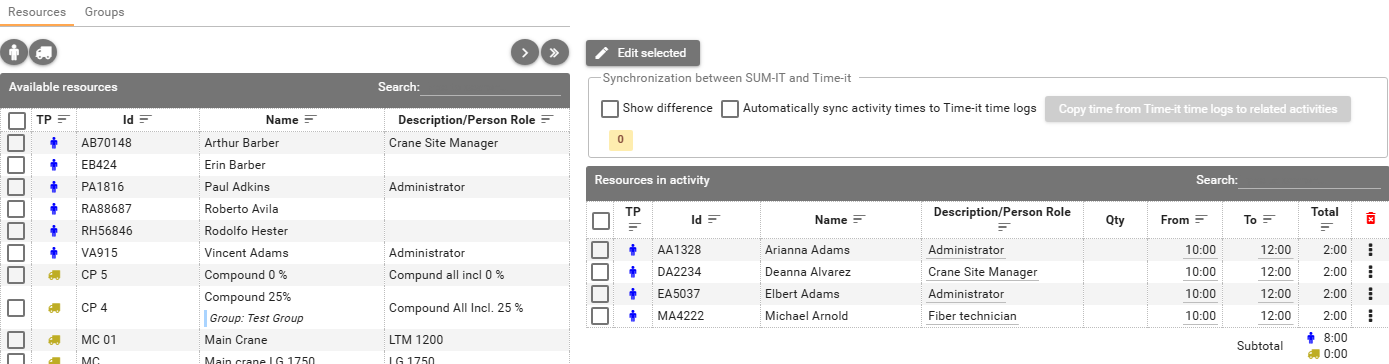
- Resources lists people and equipment together under Available resources. The columns are TP, Id, Name, and Description/Person Role. Manage users and persons in project and Manage equipment in project are on this tab. Add selected resources to activity and Add all resources to activity sit above that table. Those names are the hover text on the two icon buttons.
- Groups lists Available Groups. The opened dialog showed Test Group, with no persons and one piece of equipment. Manage Groups is on this tab.
Resources in activity is the list already on the activity. The opened activity had four people, with From, To, and Total.
Edit selected means Edit time for selected resources. Remove all resources from activity clears that list.
Time already logged in Time-it
Synchronization between SUM-IT and Time-it is on this dialog.
Show difference displays the difference between time registered in Time-it and the activity time recorded in the daily report.
Automatically sync activity times to Time-it time logs copies time from activities to the corresponding Time-it time logs that are not yet approved.
Copy time from Time-it time logs to related activities is the button beside those options. On the opened activity its count was 0.