Daily report
This screen is the record for one day. Accepting it is what later cost and overviews follow. Unapproved activities and their cost stay out of project overviews until the matter is resolved.
Cost overviews follow accepted reports. A report can be accepted in full or in part.
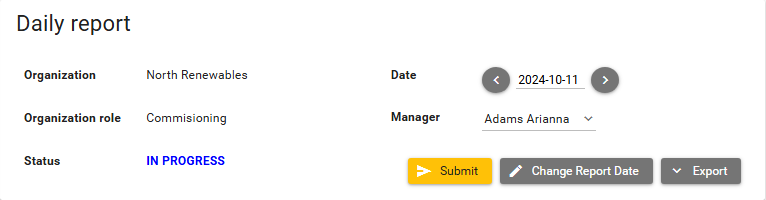
1. Day and status
The header shows Organization, Organization role, Date, Manager, and Status.
On your own in-progress report, Status can read IN PROGRESS. On a subcontractor report you are reviewing, Status can read PENDING.
The calendar uses the same colour as the status when a report exists for that organization role. A day with no report stays white.
The colours seen are:
IN PROGRESSis blue.ACCEPTEDis green.PENDINGis grey.REOPENEDis red.
The orange box on the selected day is not a status. The calendar lists days for the organization role of the report that is open. Another role on the same project has its own set of coloured days.
Previous and next day buttons sit beside the date.
2. Actions
On your own in-progress report, the buttons were Submit, Change Report Date, and Export.
On a subcontractor report with status PENDING, the buttons were Accept and Reject, plus Export. Accept was disabled on that report. Reject was enabled. Add activity and Copy to another day were not on that report. The Time-it tab was not on that report either.
If an activity must still be changed by the other organization, that activity must not be accepted.
Accept and Reject are available when your organization has the privilege to review that report. You also need the matching permission. Edit report details lets you change any activity on a report you can view that your organization created. Edit own report details lets you create activities, and edit only activities you created. It also lets you add attachments. See Organizations permissions.
Change Report Date opens a dialog with a required New Date. Save applies the date. Cancel closes the dialog.
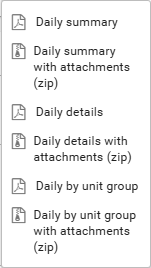
Export on this screen is not the list's Export to Excel. The menu items are:
- Daily summary
- Daily summary with attachments (zip)
- Daily details
- Daily details with attachments (zip)
- Daily by unit group
- Daily by unit group with attachments (zip)
3. Weather
Weather conditions sits beside the header. New opens Create/Edit Condition.
Describe weather condition is required. Save stores the line. Save and next stores it and keeps the dialog open for another line. Cancel closes the dialog.
On a report you only review, New was disabled.
Copy to another day
Some activities repeat across many days. A crane can be on standby for a whole week. Copy to another day lets you avoid typing that same activity again.
The button is on your own report. It is absent on a report you only review.
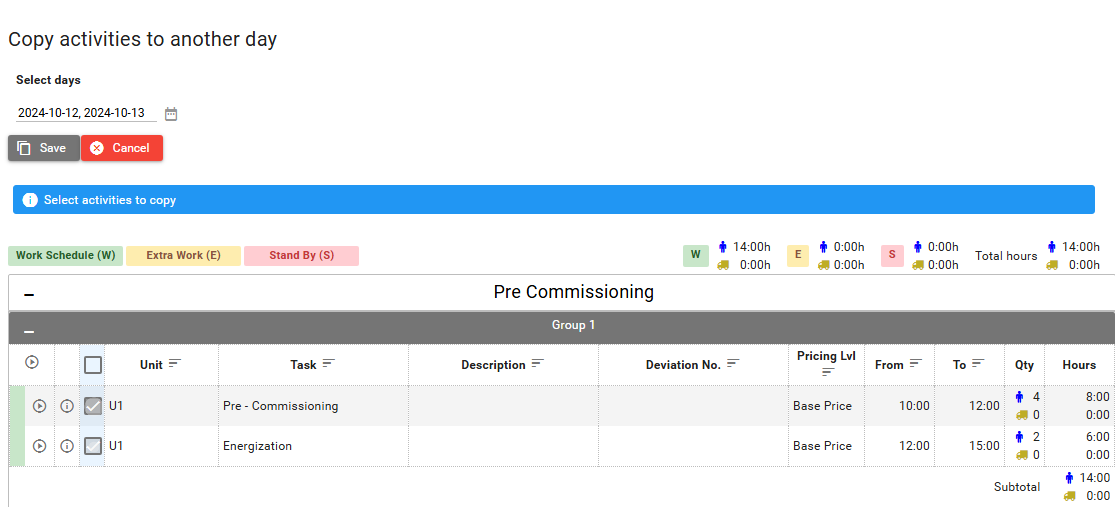
Copy to another day switches the screen to Copy activities to another day.
- Select days is the set of dates to copy onto.
- Select activities to copy tells you to mark the activities.
- Select all activities is the header checkbox.
- Select activity to copy is the checkbox on a row.
- Save and Cancel are on the copy screen. Cancel leaves copy mode and brings the previous buttons back.
An accepted day is disabled in Select days. The report's own day is also disabled while that report is IN PROGRESS. A day with no report for this organization role can be selected.
Add activity and Submit are not on the screen while copy mode is on.