Time-it
The Time-it tab sits next to Details on the daily report. Time-it is a separate app where people log their own working time, with the task and unit they worked on. The Time-it tab lists those time logs for this day, grouped by construction stage and unit group. Use it to turn those logs into activities, so you do not have to type the hours again.
You see the tab only when your organization has switched on Time-it. An organization administrator does this once for the whole organization, in Apps & Modules -> Time-it, with Enable Time-it. It needs the Edit permission on Administration -> Apps & Modules, and the Time-it terms and conditions must be accepted first. The tab is shown only on your own organization's report. When you review another organization's report, it has no Time-it tab.
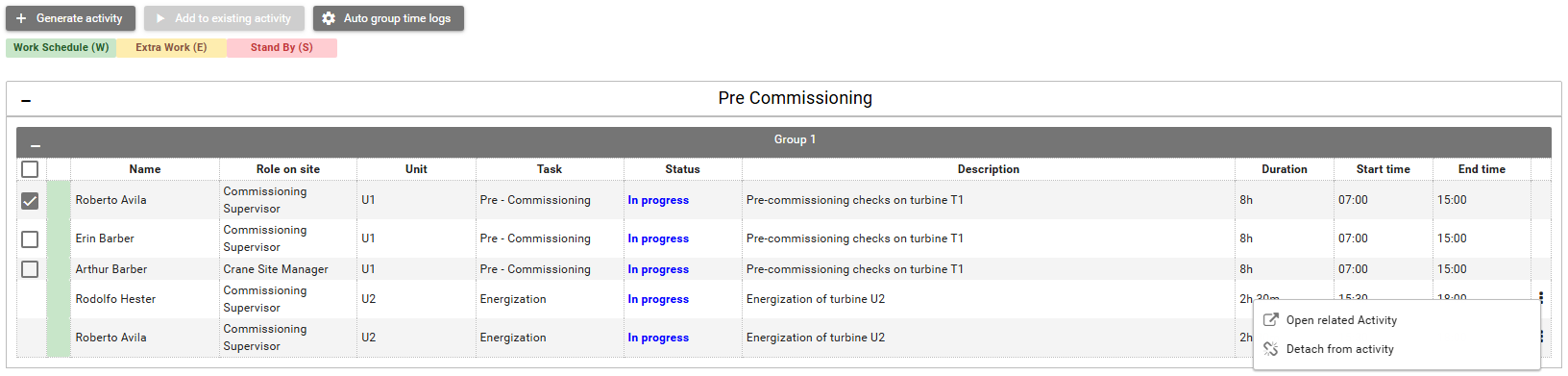
Each time log shows Name, Role on site, Unit, Task, Status, Description, Duration, Start time, and End time. Status is the time log's status in Time-it: In progress, Pending, Approved, or Rejected. Logs for tasks that are not done on units are listed under Time logs not related to units. When there are no logs for the day, the tab says No timesheets available for this daily report.
You can tick time logs while the report can still be edited and you have Edit report details or Edit own report details. A log that is already part of an activity has no tick box. You work with it through its row menu instead.
After your first tick, you can tick only logs with the same type, construction stage, task, and unit, and only one log per person. The tick boxes of the other logs are greyed out. Generate activity and Add to existing activity stay greyed out until you tick at least one log. Auto group time logs does not need a tick. It is available while the day has logs that are not yet part of an activity.
- Click Generate activity to open Create Activity filled in from the ticked logs. Check it and click Save. The people are linked to their time logs.
- Click Add to existing activity to add the ticked logs to an activity you already have. The list offers only activities with the same type, construction stage, task, and unit. The activity must be recorded for that unit alone, not together with other units. For example, a log on U1 can be added to an activity recorded for U1 only, but not to one recorded for U1 and U2 together. Activities that already include the person are left out. When no activity matches, the button stays greyed out. Choose one and click Add.
- Click Auto group time logs to let SUM-IT group the logs that are not yet part of an activity. It shows one group at a time ("Processing time log group 1 of 2"). Check each activity and save it.
Each time log row has a menu (three dots, hover Click to see actions). Depending on the log, it offers Open related Activity, Push time to activity, Pull time from activity, and Detach from activity. You can also edit a log's cells when you are allowed to change it. An approved log cannot be changed. If you change the type, task, or unit of a log that is already in an activity, you are asked to confirm, because the log is detached from that activity.
When Time-it and the activity disagree
Sometimes a log's time or role on site differs from its activity. Then Show difference and Synchronize appear above the table.
- Tick Show difference to mark the differences in the table.
- Synchronize offers Copy time from time logs to related activities and Copy time from activities to related time logs. It is shown while the report is
IN PROGRESS, and only to users withEdit report details.
When nothing differs, these two controls are not shown.